
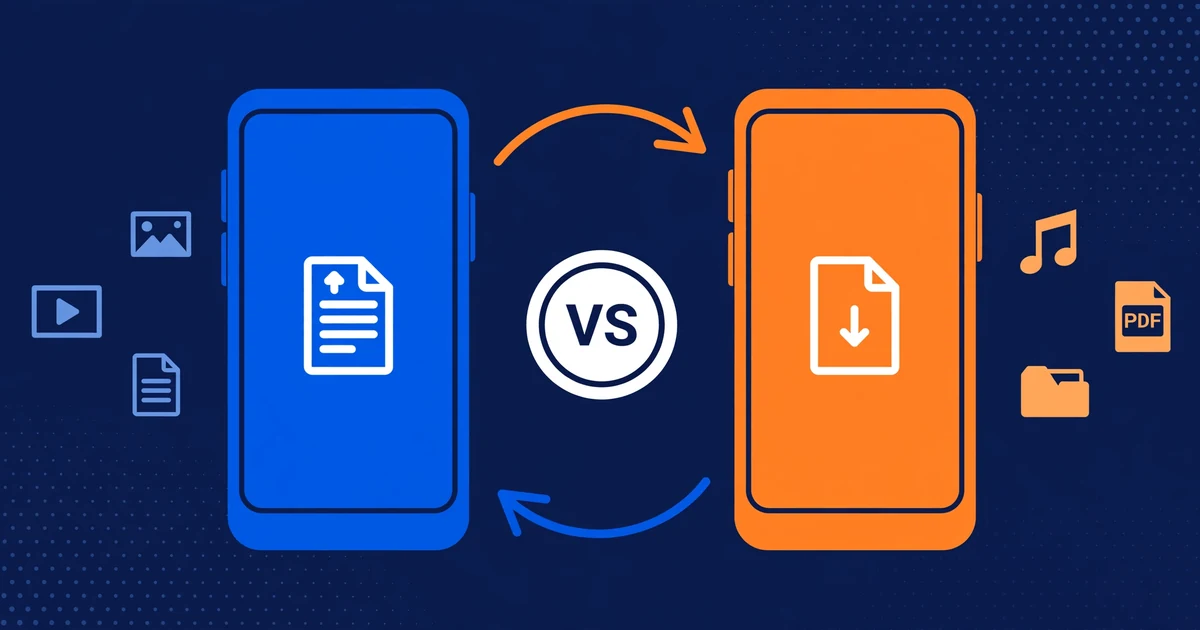
Xender ‘Quick Share’ vs Google Quick Share”: Two Different Things, One Name
sharexzone.com is an independent guide blog about the Xender app. We are not affiliated with, endorsed by, or connected to Xender’s developers or Google, and we do not host or distribute the app. This post contains no download links to any app — the only link is to our own guide hub.
You type “xender quick share” into Google and every result is about a feature built into your Android phone — Google’s Quick Share. But the app listing you just looked at is titled “Xender – Quick Share, Transfer.” So which one is it? Did Xender become Google’s feature? Are they the same thing? Did you install the wrong app?
This is a genuine naming collision, and right now almost nobody is explaining it. To be clear about what this post is and isn’t: it is not another “Xender vs some app” showdown. Nobody wins here. It’s a disambiguation guide — a naming-collision explainer that answers three questions: what Xender means by “Quick Share,” what your phone means by “Quick Share,” and how to make sure you’re using the one you actually wanted.
Why the confusion exists
Two completely separate products picked the same words, at different times, for different reasons.
Google’s Quick Share has been a built-in Android feature for years. It began life as Nearby Share and was renamed to Quick Share in early 2024 (Google merged its branding with Samsung’s existing Quick Share name). If your Android phone is from roughly 2017 or later, you already have it — it lives in the share sheet, the menu that appears when you tap the share icon in any app. It’s part of the operating system, not something you download.
Xender’s “Quick Share” is newer wording on the product itself. Xender’s official Google Play listing (package cn.xender, version 19 line, updated September 2026) is now titled “Xender – Quick Share, Transfer,” with the developer tagline “Quick Share! Share Video, Better AirDrop, Cross-platform, Connect PC and Mac.” Same app you’ve known for years — new wording on the store listing. The developer is using “Quick Share” as marketing language for what the app does: fast sharing.
So the collision is literal: one is a product named Quick Share by Google; the other is an app described as Quick Share by its own developer. They share two words and nothing else — different companies, different protocols, different systems.
Note: “Quick Share” on Xender’s listing is a display-name rebrand of the same app. It is not a new app, not a Google partnership, and not a sign that Xender merged with anything. If you have the cn.xender app installed and updated, you have “it” — whatever the listing title says.
What “Quick Share” means in Xender
When Xender calls itself “Quick Share,” it is describing its own offline phone-to-phone transfer flow — the thing the app has done since the beginning, just with a faster-sounding label. Understanding the actual mechanism helps the rest of this guide click into place, so here is what happens under the marketing word:
- The sender opens the Xender app and taps Send, selecting files, apps, music, videos, or entire folders.
- Xender activates the phone’s Wi-Fi hotspot (or Wi-Fi Direct, depending on the device and Android version) — creating a private, short-range wireless network between the two phones. No internet connection is used or needed. Your mobile data stays untouched.
- The receiver opens the Xender app and taps Receive. The two devices find each other either by scanning a QR code shown on the sender’s screen or by picking the sender from a nearby-device list.
- Files move directly device-to-device over that private network. This is why transfers are fast and why it works in places with no signal — an airplane, a basement, a rural road.
The key point for this post: Xender’s “Quick Share” is a branding of this entire offline P2P process. The app handles everything itself — creating the connection, pairing the devices, and moving the files. That is also why Xender can do things a built-in OS feature cannot: transfer to an iPhone (over local Wi-Fi), to a PC (via the app’s Connect-to-PC mode in a desktop browser), and to groups of devices at once. The app is the connection.
What Google Quick Share is
Google Quick Share is Android’s built-in share feature, baked into the operating system by Google and Samsung. It replaced Nearby Share as the name of the system-level “send this thing to a nearby device” function.
Here’s how it works in practice:
- It lives in the share sheet. Open any photo, video, file, or link on your Android phone, tap the share icon, and “Quick Share” is one of the targets — alongside WhatsApp, email, Bluetooth, and everything else.
- You don’t install anything. On supported phones (roughly Android 6.0 and up), it’s already there. On Windows PCs, Google offers a companion Quick Share app.
- It uses a mix of Bluetooth, Wi-Fi, and location to discover nearby devices and establish the transfer. You don’t have to toggle anything manually — Android handles the plumbing behind the share sheet.
- It can require a Google sign-in for some modes. Sharing with your own devices or with your contacts typically requires being signed in to a Google account. There is also a mode for “everyone” nearby, with visibility time limits.
Its strength is zero setup: the person next to you doesn’t need to have installed anything, doesn’t need to open an app, and just accepts the incoming file from a notification. Its limits are the operating system’s: it’s fundamentally Android-to-Android (with the 2026-era AirDrop interoperability extending to iPhones — see the sidebar below), and it’s one-to-one casual sharing, not a file-manager-grade transfer tool.
The 2026 twist worth knowing: Google extended Quick Share to interoperate with Apple’s AirDrop on recent hardware (Pixel and Galaxy line, from late 2025 into 2026). This is Google’s feature talking to Apple’s feature; it doesn’t involve Xender at all. Re-check the rollout status at publish time — availability varies by device and update.
Update — mid-range expansion (reported, October 2026): Samsung’s Quick Share to AirDrop option, ‘Share with Apple devices’, has now reached the Galaxy A56 and Galaxy A57 with the One UI 9 update — previously it was limited to flagship Galaxy models. Two caveats, both reported rather than in Samsung’s official changelog (which does not mention this expansion): the rollout varies by region, so the toggle may not appear yet on every updated phone, and during a transfer your phone may briefly disconnect from Wi-Fi and transfer more slowly than Samsung-to-Samsung Quick Share. This is still Google/Samsung’s feature talking to Apple’s AirDrop — it does not involve Xender at all.
The side-by-side clarity table
For the “wait, so which one is it” moment, here is the whole collision laid out:
| Xender’s “Quick Share” | Google Quick Share | |
|---|---|---|
| What it is | Branding of the Xender app’s own offline transfer flow | Android’s built-in OS share feature (by Google + Samsung) |
| Owner | Xender’s developers (independent of Google) | Google / Samsung |
| How devices connect | The Xender app creates a private hotspot/Wi-Fi Direct network; pair via QR code or nearby-device list inside the app | Android handles discovery over Bluetooth + Wi-Fi + location behind the share sheet |
| Internet needed? | No — fully offline transfers | No internet needed for the transfer itself; some modes need a Google sign-in |
| Platforms | Android, iPhone (over local Wi-Fi), PC/Mac via browser mode | Android-to-Android natively; Windows via Google’s companion app; AirDrop interop on recent devices (2026) |
| App needed on both sides? | Yes — both phones need the Xender app installed and open | No on Android — it’s built into the OS; the receiver just accepts a notification |
| File-size limits | No practical cap — designed for large files and bulk transfers | Meant for casual one-to-one sharing; not a bulk-transfer tool |
| Account needed? | No account at all | Google sign-in needed for own-devices and contacts modes |
| Found where? | Xender app on your home screen / Play listing titled “Xender – Quick Share, Transfer” | The share sheet — tap share in any app and look for “Quick Share” |
One row in that table carries the single most important fact of this post, and it deserves its own section.
Do they work together? No — and that’s the critical answer
A file sent through Google Quick Share does not land in Xender. A file sent through Xender does not appear in Google Quick Share’s history. They are completely separate systems running completely separate protocols.
This is the mistake the naming collision actually causes, so let’s make it concrete. You want to send a video to the person sitting across from you:
- If you open the Xender app, tap Send, and pair with their phone — the transfer happens inside Xender. They must have the Xender app open and have tapped Receive. The file arrives in Xender’s receive folder (see our guide on where Xender received files go).
- If you tap the share icon on that video and choose “Quick Share” — Android takes over. Xender is not involved. They get a notification from the Android system, tap Accept, and the file lands in their Downloads folder. The Xender app doesn’t even know it happened.
Starting a transfer in one system and looking for it in the other is like dropping a letter at FedEx and checking the post office. Same idea, unrelated infrastructure.
Can both live on the same phone? Yes — here’s when to use which
There is no conflict, no technical problem, and no reason to uninstall anything. Having both is normal — one is your OS’s sharing button, the other is an app you installed. The useful question is not “which one do I keep” but “which one do I reach for, when.” Here’s the decision guide:
Use Google Quick Share when:
- You’re sending to another Android phone right next to you — a photo, a video, a document, a link.
- The other person doesn’t have (and shouldn’t need to install) any app.
- It’s casual, one-to-one, and quick: the share sheet is two taps away.
Use the Xender app (the “Quick Share” one) when:
- The other phone is an iPhone. Google Quick Share is Android-first; Xender handles Android-to-iPhone over local Wi-Fi. Our Xender for iOS guide walks through the cross-platform flow.
- You’re sending to a PC or Mac via the app’s Connect-to-PC browser mode — Google Quick Share’s Windows support is narrower.
- You’re moving large or many files at once — full video folders, app backups, bulk media — with no practical size cap.
- You want no account, no sign-in, no cloud — just two devices and a private local connection.
- You’re sharing with a group at once, not one person.
Honestly? Most Android users will use Google Quick Share for the casual stuff (one photo to a friend) and keep Xender for the heavy lifting (cross-platform transfers, bulk moves, iPhone and PC). That’s not a compromise — it’s each tool doing the job it was built for.
Troubleshooting: “I expected it in Xender but it used the other one”
This is the support ticket the naming collision writes. Symptoms: you meant to receive a file in Xender, but the sender “just shared it” and now you can’t find it in Xender’s folder — or you expected a system notification and instead your friend is asking you to scan a QR code.
How to tell which one ran. Look at what you interacted with:
- If anyone scanned a QR code, opened the Xender app, or tapped Send/Receive inside Xender — it was Xender. The file is in Xender’s received-files folder (find it here).
- If the sender tapped the share icon and chose “Quick Share” from the sheet, and you got an Android system notification asking to accept — it was Google Quick Share. The file is in your phone’s Downloads folder, not in Xender.
How to force the intended one.
- To force Xender: don’t start from the share sheet. Open the Xender app itself on both phones, sender taps Send, receiver taps Receive, and pair via QR or nearby devices. If devices won’t find each other, work through our connection-failure fixes — hotspot, location permission, and stale profiles are the usual culprits.
- To force Google Quick Share: use the share sheet from any app (Gallery, Files, browser) and pick “Quick Share” as the target — never open the Xender app. On the receiving phone, make sure Quick Share visibility is on (Settings → Google → Devices & sharing → Quick Share, or the Quick Settings tile), since “off” visibility silently kills incoming transfers.
- If the receiver expected one and got the other: nothing is lost — the file is just in the other system’s inbox. Check Downloads (Google Quick Share) or Xender’s receive folder (guide) accordingly, and agree with the sender on one method before retrying.
The bottom line
The collision is cosmetic but the confusion is real: Xender’s Play Store listing now brands the app “Quick Share,” while your phone has a Google feature with the same name built into the share sheet. Same words, separate worlds. Remember the two signatures — QR codes and Send/Receive inside an app means Xender; the share sheet’s Quick Share target means Google — and you’ll never mix them up again. And when you want the full feature-by-feature comparison with the system Google Quick Share replaced, our Xender vs Nearby Share comparison has it.
Frequently Asked Questions
Is Xender now called Quick Share?
No. “Xender – Quick Share, Transfer” is the current Google Play listing title — a display-name rebrand of the same cn.xender app. The app on your phone is still Xender, the developer is still independent, and nothing merged with Google. If the listing title ever reverts, the app underneath stays the same.
Is Xender’s Quick Share the same as my phone’s Quick Share?
No. Your phone’s Quick Share is Google’s (with Samsung) built-in Android share feature, living in the share sheet. Xender’s “Quick Share” is the Xender developer’s own branding for the app’s offline phone-to-phone transfer flow. Same two words, different companies, different protocols, zero interoperability.
Can I use both on the same phone?
Yes. Google Quick Share is part of the Android OS and Xender is a separate app — they don’t conflict. Use the built-in Quick Share for casual Android-to-Android sharing (no app needed on the other side), and the Xender app for cross-platform transfers to iPhone and PC, bulk moves, groups, and no-account offline sharing.
Why does Google show results for Google Quick Share when I search “xender quick share”?
Because Google’s feature is older, bigger, and documented across official support pages — and almost nothing has been written about Xender’s listing rebrand until now. The search engine is answering the half of the query it knows best. That’s exactly the gap this guide exists to fill.
If I send a file with Google Quick Share, will it appear in Xender?
No. The two systems are completely separate. A Google Quick Share transfer delivers to the receiver’s Downloads folder via an Android system notification — Xender never sees it. A Xender transfer only works between two devices with the Xender app open, and lands in Xender’s receive folder.
Which one is better for sending files to an iPhone?
The Xender app. Google Quick Share is Android-first (its 2026-era AirDrop interop covers recent Google/Samsung-to-iPhone scenarios in some cases, but it’s Google’s feature, not Xender’s). Xender handles Android-to-iPhone over local Wi-Fi with the app on both devices — see our Xender for iOS guide.
My friend used Quick Share but my Xender app shows nothing — where’s the file?
Your friend almost certainly used Google Quick Share from the share sheet, not the Xender app. Check your phone’s Downloads folder and your notification shade for the acceptance prompt (make sure Quick Share visibility is on). Nothing is wrong with Xender — it simply wasn’t involved in that transfer.