
Xender for iOS Download, Setup & Transfer Guide for iPhone and iPad (2026)
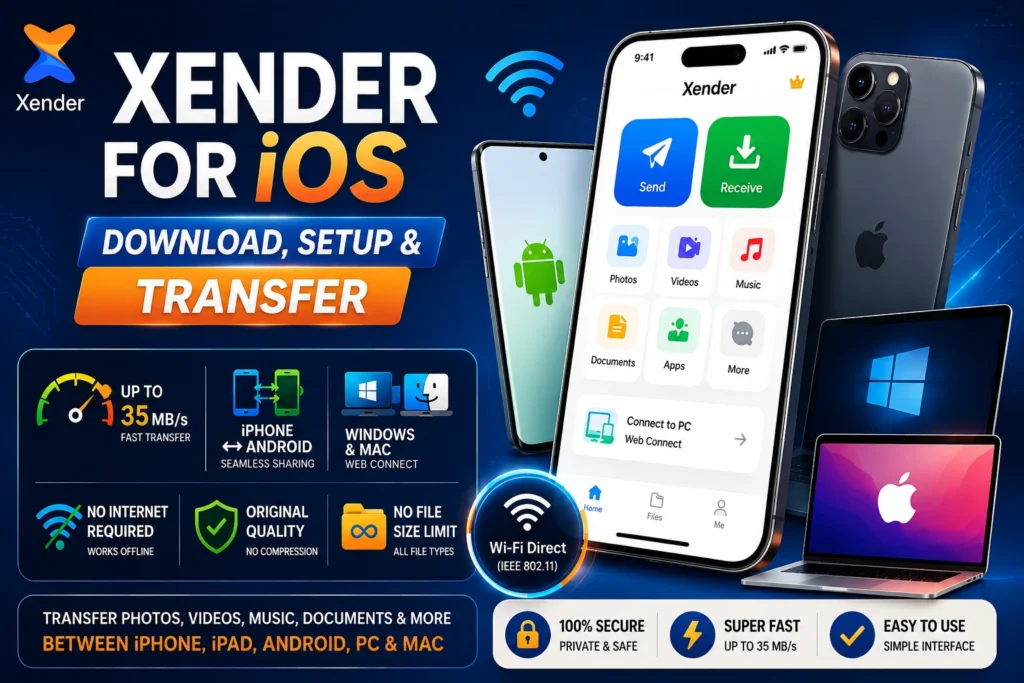
Xender for iOS is a free file-sharing app that lets you transfer photos, videos, documents, and other files between iPhone, iPad, Android devices, Windows PCs, and Macs without using the internet or USB cables. It offers a fast and simple way to share files across different platforms while preserving their original quality. In this guide, you’ll learn how to download, set up, and use Xender for iOS, along with solutions to common connection issues and important iPhone-specific tips.
| App Name | Xender: Transfer, Share Files |
| Developer | Xender Team / Xender (HK) Limited |
| Platform | iPhone, iPad, iPod Touch |
| Latest iOS Version | v14.6.1 |
| Last Updated | March 2026 |
| App Size | 90.3 MB |
| Minimum iOS Required | iOS 10.0 or later |
| App Store Rating | 4.2 / 5 (559,000+ reviews) |
| Transfer Technology | Wi-Fi Direct (IEEE 802.11) |
| Internet Required | No |
| File Size Limit | Unlimited |
| Price | Free |
How to Download Xender for iOS
From the Apple App Store
Open the App Store on your iPhone or iPad
Tap the Search tab at the bottom
Type “Xender: Transfer, Share Files”
Tap Get next to the Xender app — confirm with Face ID, Touch ID, or your Apple ID password
Wait for the download to complete — 90.3 MB, takes under a minute on Wi-Fi
Tap Open to launch Xender
How to Transfer Files from iPhone to Android
This is the most searched transfer direction for Xender iOS users — and the one that requires the most understanding of what is happening under the hood.
📡 Why It Works Differently Than AirDrop
AirDrop uses Bluetooth for device discovery and Wi-Fi Direct for transfer — but it only works between Apple devices because Apple controls both ends of the protocol. Xender bypasses this by having one device create a local Wi-Fi hotspot that the other device joins. The transfer then happens over that direct local connection at speeds of 15–25 MB/s — no internet involved, no router required.
🍎 iPhone (Sender)
- 01 Open Xender
- 02 Tap Send
- 03 Select your files — photos, videos, documents, or music
- 04 Tap Connect to Android
- 05 Xender creates a Wi-Fi hotspot — the hotspot name appears on screen (format: Xender_XXXXXX)
🤖 Android (Receiver)
- 01 Go to Settings → Wi-Fi
- 02 Find and connect to the hotspot created by the iPhone (Xender_XXXXXX)
- 03 Open Xender on Android
- 04 Tap Receive
- 05 Accept the connection request that appears
- 06 Transfer begins — progress shows on both screens
- 07 Files are saved in: Internal Storage → Xender folder
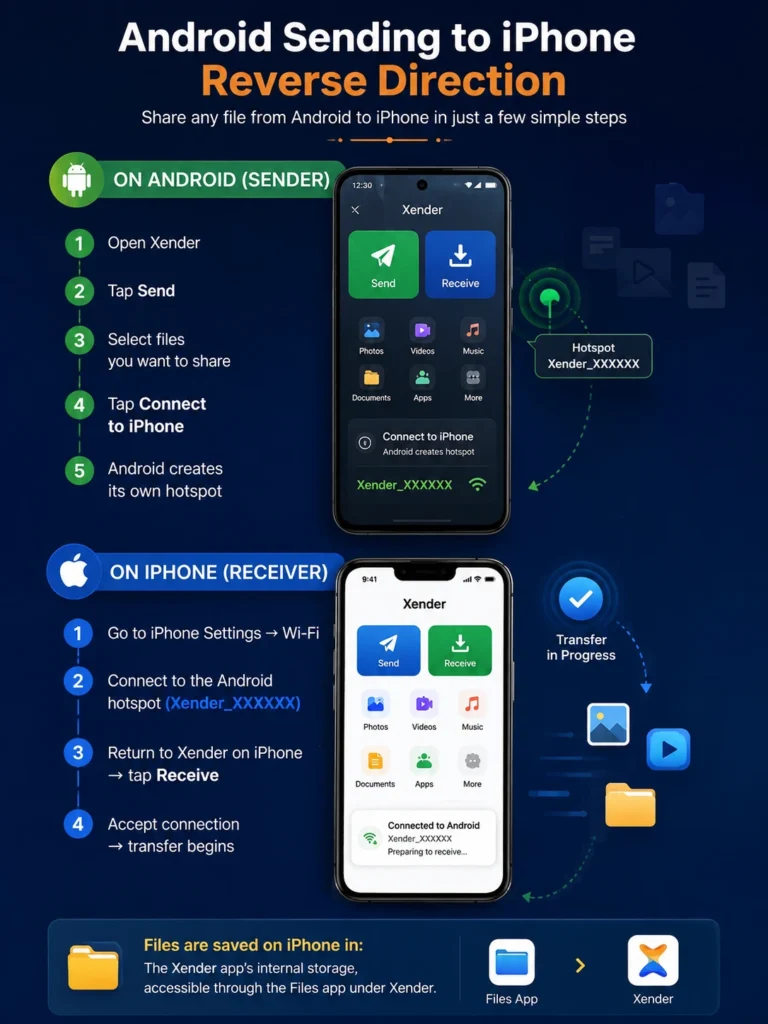
Android Sending to iPhone — Reverse Direction
On Android (sender):
Open Xender → tap Send → select files
Tap Connect to iPhone
Android creates its own hotspot
On iPhone (receiver):
Go to iPhone Settings → Wi-Fi
Connect to the Android hotspot (Xender_XXXXXX)
Return to Xender on iPhone → tap Receive
Accept connection → transfer begins
Files are saved on iPhone in: The Xender app’s internal storage, accessible through the Files app under Xender.
How to Transfer Files from iPhone to PC or Mac
Xender connects iPhone to Windows and Mac through Xender Web Connect — a browser-based interface that requires no software installation on the computer.
iPhone to Computer Using Xender Web Connect
Xender Web Connect creates a direct browser connection between your iPhone and computer. No desktop software, no USB cable, and no additional setup are required.
iPhone to Windows PC
-
On iPhone:
Open Xender → tap the profile icon at the top left - Tap Connect to PC
- A QR code appears on screen — keep the iPhone screen on
-
On Windows PC:
Open Chrome, Edge, or Firefox - Navigate to web.xender.com
- Click the camera icon on the web page
- Scan the QR code on your iPhone screen
- Connection is established in 3–5 seconds.
iPhone to Mac
- iPhone: Xender → profile icon → Connect to PC → QR code appears
- Mac: Open Safari or Chrome → go to web.xender.com → scan QR code
- Compatible with: macOS 10.10 (Yosemite) and above — including all Apple Silicon Macs (M1, M2, M3, M4).
Both the iPhone and the computer must be on the same Wi-Fi network. If the iPhone is on mobile data while the Mac or PC is on Wi-Fi, Web Connect cannot establish the local connection.
How to Transfer Files Between Two iPhones Using Xender
While AirDrop handles iPhone-to-iPhone transfers natively, Xender offers this for users who prefer a single app across all their devices or need to transfer to someone who has Local Network or AirDrop disabled.
On the sending iPhone:
Open Xender → tap Send
Select files
Tap Send — Xender creates a local hotspot
On the receiving iPhone:
Go to Settings → Wi-Fi → connect to the sender’s hotspot
Open Xender → tap Receive
Accept the connection
Transfer Speed on iOS — Real Expectations
iPhone’s implementation of Wi-Fi Direct carries more system-level overhead than Android because Apple restricts how third-party apps interact with the Wi-Fi radio directly. This means Xender on iOS transfers at slightly lower speeds than Android-to-Android, but still far faster than any Bluetooth or cloud-based alternative.
| Transfer Type | Speed | 1GB File Time |
|---|---|---|
| iPhone to iPhone (Xender) | 12–20 MB/s | ~60–90 seconds |
| iPhone to Android | 15–25 MB/s | ~50–75 seconds |
| iPhone to Mac (Web Connect, 5 GHz) | 20–35 MB/s | ~35–55 seconds |
| iPhone to PC (Web Connect, 5 GHz) | 20–35 MB/s | ~35–55 seconds |
| Bluetooth iPhone to Android | 2–3 Mbps | 40–55 minutes |
| AirDrop iPhone to Mac | 25–65 MB/s | ~20–40 seconds |
Xender on iPhone is 5–10 times faster than Bluetooth for the same transfer. It is slower than AirDrop between Apple devices — but AirDrop cannot send to Android or Windows, which is the reason most people install Xender on iPhone.
What Xender Can and Cannot Do on iOS
Apple places stricter restrictions on how third-party apps access device data compared to Android. This creates specific functional differences between Xender on iPhone and Xender on Android.
What Works Fully on iOS
- Sending and receiving photos in original resolution
- Sending and receiving videos without compression
- Sending documents (PDF, Word, Excel, PowerPoint)
- Sending music and audio files
- Connecting to Android phones for cross-platform transfer
- Connecting to PC and Mac via Xender Web Connect
- Receiving files from Android, PC, and Mac
iOS Limitations Explained
- iOS limits direct access to system folders compared to Android
- Some app-specific files remain inside their original applications
- Full device cloning features are restricted by Apple’s security model
- Xender works within Apple’s allowed file-sharing permissions
- Photos, videos, documents, and supported files transfer normally
What Is Limited on iOS
Phone Replication
Xender’s device cloning feature — which copies apps, SMS, contacts, and settings from one phone to another — works between Android devices only. Apple restricts third-party access to system-level app data, contacts (without permission prompts), and messages on iOS. Full Phone Replication is not available on iPhone.
App Sharing
On Android, Xender can package and share installed apps as APK files. iOS does not allow third-party apps to access or distribute installed app data in the same way. App sharing from iPhone is not supported.
Social Media Downloader
The built-in downloader for WhatsApp Status, Instagram Reels, and TikTok is available on iOS but with more limited functionality than Android due to iOS sandbox restrictions on accessing other apps’ storage.
Background Transfer
iOS can suspend background app processes more aggressively than Android. For large transfers, keep the iPhone screen on and the Xender app in the foreground throughout.
Is Xender Safe to Download on iPhone?
Yes. Xender for iOS is distributed exclusively through the Apple App Store, which applies its own review and security validation process to every app before publishing. The version available for download has been reviewed by Apple’s App Review team and has no reported security issues in its App Store history.
Beyond App Store validation, Xender’s architecture itself provides a layer of privacy:
Direct Transfer
Files transfer through a direct Wi-Fi Direct peer-to-peer connection — no file data passes through any external server.
No Cloud Upload
Nothing is uploaded to Xender’s servers during transfer. No cloud storage is involved — what you share stays between the two devices on the local connection.
No Account Required
The app does not require an account or email address.
Xender for iOS vs AirDrop — When to Use Each
AirDrop Is Better When:
-
✓iPhone to iPhone — same room
AirDrop — built-in, faster, no setup -
✓iPhone to iPad
AirDrop — seamless within Apple ecosystem -
✓iPhone to MacBook
AirDrop — fastest option
Xender Is Better When:
-
✓iPhone to Android phone
Xender — AirDrop cannot cross this boundary -
✓iPhone to Windows PC
Xender — AirDrop has zero Windows support -
✓Sending to someone without AirDrop visible
Xender — works regardless of AirDrop availability -
✓Group transfer to 4 devices simultaneously
Xender — AirDrop is one-to-one only -
✓Sending very large files (10GB+)
Xender — no size limit, no compression
Common Xender iOS Problems and Exact Fixes
iPhone Cannot Find the Android Device
Cause: Local Network Access permission is denied or was never granted.
Fix: Go to iPhone Settings → Privacy & Security → Local Network → find Xender → enable the toggle. Then close and reopen Xender. Retry the connection.
Personal Hotspot Blocking Connection
Cause: iPhone’s Personal Hotspot creates a separate network that interferes with Xender’s local Wi-Fi Direct discovery.
Fix: Go to Settings → Personal Hotspot and turn it off before using Xender. Reopen Xender and retry.
web.xender.com Not Connecting on Mac or PC
Cause: iPhone and the computer are on different networks, or the iPhone switched to mobile data during connection.
Fix: Confirm iPhone is connected to Wi-Fi (not mobile data) and that both devices are on the same network name. Open web.xender.com in an incognito/private browser window to clear cached session data.
Transfer Stops Midway on Large Files
Cause: iOS suspended Xender in the background or the iPhone screen locked during transfer.
Fix: Before starting large transfers, go to Settings → Display & Brightness → Auto-Lock and set it to Never. Keep Xender open in the foreground throughout the transfer. Re-enable Auto-Lock after completion.
Files Received via Xender Not Appearing in Photos
Cause: Photos received through Xender are saved to Xender’s internal storage, not automatically to the iPhone Camera Roll.
Fix: Open Xender → go to the Received tab → find the photo or video → tap and select Save to Photos. This moves it to the Camera Roll where it appears in your Photo Library.
Supported iPhone and iPad Models
Xender requires iOS 10.0 or later. Every iPhone and iPad currently in active use runs iOS 10 or above. The specific models still supported on iOS 10 through the current iOS include:
📱 iPhone
iPhone 5 and all later models through iPhone 16 series
📲 iPad
iPad Air, iPad mini 2, iPad Pro (all generations), iPad (5th generation and later)
🎵 iPod Touch
6th generation and 7th generation
Frequently Asked Questions
Yes. Xender transfers files over a direct Wi-Fi Direct connection — no internet, no mobile data, no router required. Wi-Fi must be enabled on both devices, as the hardware radio Xender uses, but no network connection is needed.
Open Xender on iPhone, tap Send, select your files, and tap Connect to Android. Xender creates a local hotspot. On the Android phone, go to Wi-Fi settings, connect to the hotspot (Xender_XXXXXX), open Xender, and tap Receive. Transfer begins after connection — no internet needed.
Apple introduced Local Network permission in iOS 14 to give users control over which apps can discover and communicate with devices on the same Wi-Fi network. Xender needs this permission to find nearby Android phones, PCs, and Macs. Without it, device discovery fails. Grant it once in Settings → Privacy & Security → Local Network.
The latest version is Xender v14.6.1, updated in March 2026. It requires iOS 10.0 or later and is available free on the Apple App Store. The app size is 90.3 MB.
Yes. Open Xender on iPhone, tap the profile icon, and tap Connect to PC. On your Mac, open Safari or Chrome and go to web.xender.com, then scan the QR code displayed on your iPhone. Files transfer in both directions without AirDrop, cables, or iCloud. Works on macOS 10.10 and above, including all Apple Silicon Macs.
Core file transfer functionality is the same. The main differences are that Xender on iOS does not support Phone Replication (full device cloning), app-to-app sharing, or some social media downloader functions — all due to Apple’s system-level restrictions on third-party apps, not Xender’s design choices.
The most common cause is iOS Auto-Lock locking the screen during a long transfer, which suspends the Xender foreground process. Set Auto-Lock to Never (Settings → Display & Brightness → Auto-Lock) before starting transfers over 500MB. Re-enable it afterwards.
No. Xender transfers files through a direct local connection without any server-side processing. Photos transfer at their full original resolution, and videos retain their original bitrate and frame rate. The file received is byte-for-byte identical to the original.
Yes. Open Xender on iPhone, tap the profile icon, and tap Connect to PC. On your Windows PC, open Chrome or Edge, go to web.xender.com, and scan the QR code. No PC software installation needed. Works on Windows 7, 8, 10, and 11.
Files received via Xender are saved in Xender’s internal app storage. To find them, open Xender and go to the Received tab. To move photos or videos to your Camera Roll, tap the file and select Save to Photos. Documents can be exported to the Files app through the share icon.
Final Conclusion
Xender for iOS does one thing better than any built-in iPhone tool: it removes the platform boundary between iPhone and the rest of the world. Within Apple’s ecosystem, AirDrop handles everything cleanly. The moment an Android phone, a Windows laptop, or a non-Apple device enters the picture, AirDrop stops working, and Xender starts.
At 15–25 MB/s for iPhone-to-Android transfers and 20–35 MB/s for iPhone-to-Mac via Web Connect, the speeds are practical for real-world file volumes — photos, videos, documents, music. Files arrive without compression and without touching any server. The Local Network permission setup takes 10 seconds. After that, every transfer starts in under a minute.
The iOS version has real limitations compared to Android — Phone Replication, app sharing, and some downloader functions are restricted by Apple’s platform rules. Those limits are Apple’s, not Xender’s. What Xender can do on iOS, it does reliably, at speed, and at no cost.
Download Xender for iOS free from the Apple App Store and use this guide as your setup and troubleshooting reference for any transfer scenario.