
Xender for Mac Transfer Files from Android & iPhone to MacBook Wirelessly (2026)
There is no native AirDrop support for Android devices. There is no official way to send files from an Android phone to a MacBook without a USB cable, a third-party cloud service, or an emulator. This is one of the most commonly frustrating gaps in everyday device management — and Xender for Mac fills it cleanly.
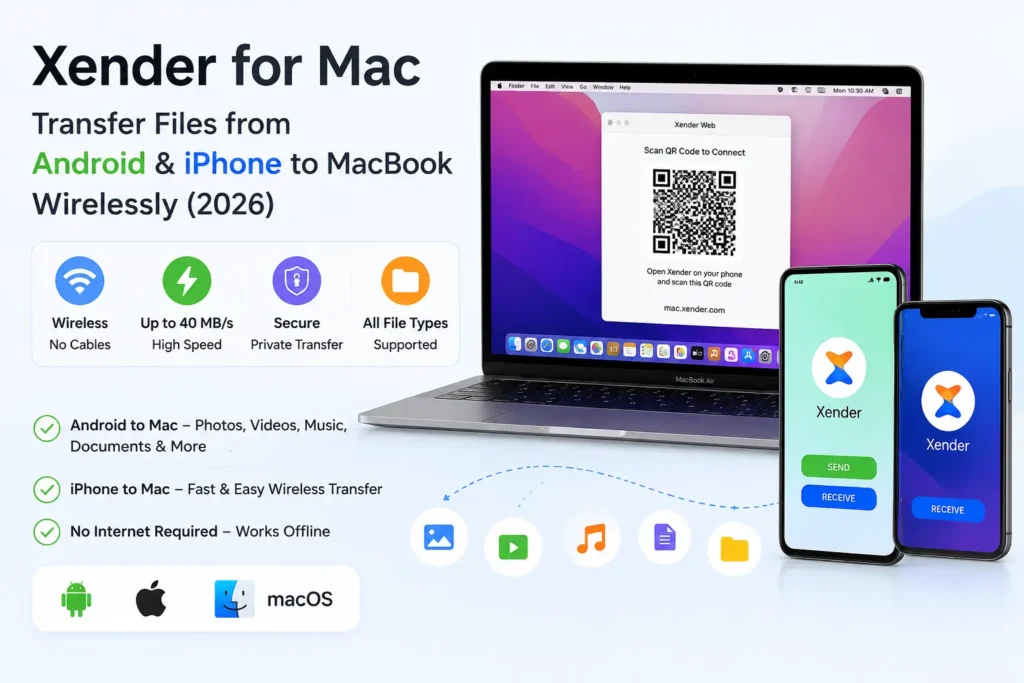
Xender developed by Xender (HK) Limited and trusted by over 500 million users across Android, iOS, Windows, and macOS, connects your phone to your Mac through a browser-based system called Xender Web Connect — no software installation required on the Mac. No drivers. No cables. Files move directly between your phone and your MacBook through your local Wi-Fi network at speeds up to 40 MB/s — with zero internet and zero data cost.
This guide covers every method available for using Xender on Mac in 2026: browser-based Web Connect, iPhone-to-Mac transfers, Android-to-Mac transfers, compatibility across macOS versions, and fixes for the most common connection issues.
Xender for Mac — Quick Overview
| Detail | Information |
|---|---|
| Developer | Xender (HK) Limited |
| Mac Setup Method | Xender Web Connect (browser-based) |
| Mac Software Required | None |
| Supported Browsers | Safari, Chrome, Firefox, Opera |
| macOS Compatibility | macOS 10.10 (Yosemite) and above |
| Apple Silicon Support | Yes — M1, M2, M3, M4 all supported |
| Transfer Speed | Up to 40 MB/s |
| Internet Required | No |
| File Size Limit | None |
| Price | Free |
How Xender Works on Mac — The Technical Foundation
Mac users are accustomed to AirDrop for wireless file transfer — a system that works beautifully between Apple devices but is entirely unavailable for Android phones. Xender fills this gap through a different but equally capable architecture.
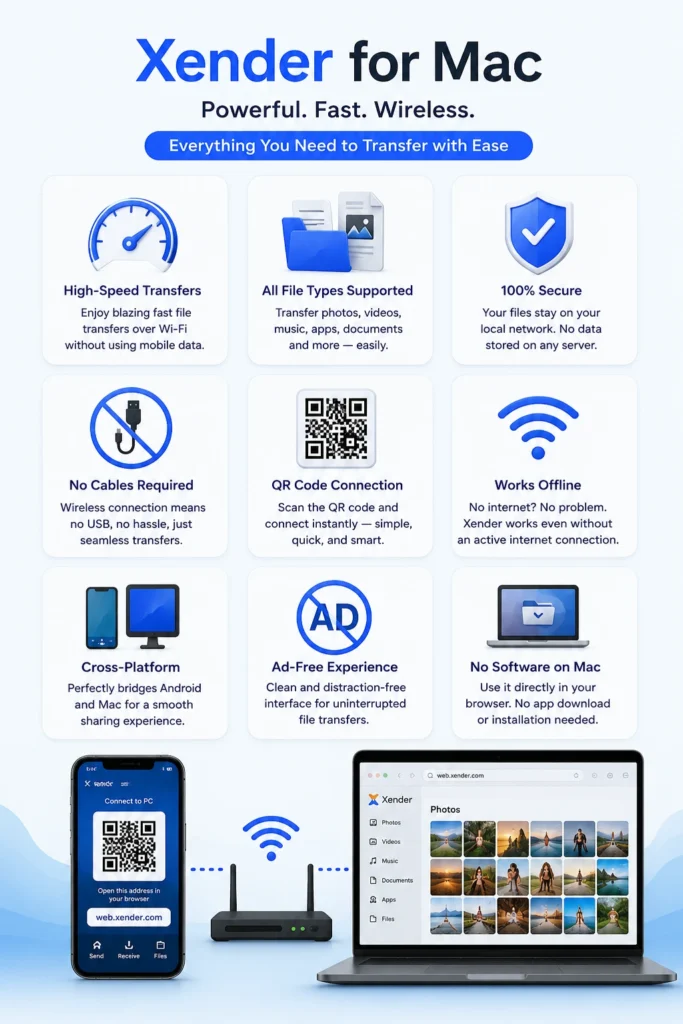
When you open Xender on your phone and tap Connect to PC, the app creates a local HTTP server on your phone. This server makes your phone’s storage browsable over your local Wi-Fi network. Your Mac’s browser connects to this server by navigating to web.xender.com — which acts as the visual interface. The QR code encodes your phone’s local IP address on the current network, so the browser knows exactly where to find it.
The key technical detail: no data leaves your local network. Files move from your phone directly to your Mac browser through the Wi-Fi router — the router facilitates local communication only, exactly like how your Mac browses a local network drive. Xender’s servers are not involved at any point in the transfer.
This is why Xender for Mac works even on a router with no internet connection, and why transfer speed depends on your local Wi-Fi quality rather than your broadband speed.
Method 1 — Android to Mac Transfer via Xender Web Connect
This is the most common use case: moving files from an Android phone to a MacBook without any cable or cloud service.
What You Need
- ✅ Xender installed on your Android phone
- ✅ Your Mac running Safari, Chrome, or Firefox
- ✅ Both phone and Mac connected to the same Wi-Fi network
- ✅ Phone screen set to stay on during transfer
- Open Xender
- Tap the profile icon at the top left
- Tap Connect to PC
- A QR code appears on your phone screen — keep it visible
- Open Safari, Google Chrome, or Firefox
- Navigate to web.xender.com
- The page shows a QR code scanner interface
- On Safari: long-press the QR code on your phone screen and use Safari’s built-in QR reader, or click the camera icon on the web page
- On Chrome: click the camera icon on the web page and scan
- Connection establishes within 3–5 seconds
Step-by-Step — Android to Mac
On your Android phone:
On your Mac:
Once Connected:
- Your phone’s storage is fully visible in the browser, organized by category (Photos, Videos, Music, Files)
- Phone to Mac: Click any file or folder to download it directly to your Mac’s Downloads folder
- Mac to Phone: Drag files from Finder directly into the browser window — they appear in Xender’s received folder on your phone
- Both directions work simultaneously in the same session
Method 2 — iPhone to Mac Transfer via Xender
For iPhone users, Xender for Mac offers a wireless alternative to AirDrop that also works with non-Apple devices. The setup takes slightly longer on first use due to an iOS permission requirement, but subsequent connections are fast.
Why iPhone Requires One Extra Step
Since iOS 14, Apple requires apps to explicitly request Local Network Access permission before they can discover or communicate with devices on the same Wi-Fi network. Without this permission, Xender on iPhone cannot see your Mac browser session — even when both are on the same network. This is an Apple-imposed system requirement, not a Xender limitation.
The permission is a one-time prompt that appears the first time Xender attempts a local network connection.
Step-by-Step — iPhone to Mac
On your iPhone:- Open Xender → tap the profile icon → tap Connect to PC
- If iOS prompts “Xender Would Like to Find and Connect to Devices on Your Local Network” — tap Allow
- QR code appears on the iPhone screen
- Open Safari or Chrome
- Navigate to web.xender.com
- Scan the QR code displayed on your iPhone
- Connection establishes
If Local Network permission was previously denied: Go to iPhone Settings → Privacy & Security → Local Network → find Xender → toggle it On. Then return to Xender and retry Connect to PC.
What Transfers Between iPhone and Mac via Xender
| File Type | Transfer Supported | Notes |
|---|---|---|
| Photos (HEIC, JPG, PNG) | ✅ Yes | Full original resolution |
| Videos (MOV, MP4) | ✅ Yes | Full original quality |
| Documents (PDF, DOCX) | ✅ Yes | All formats |
| Music (MP3, AAC) | ✅ Yes | |
| Files from Files app | ✅ Yes | Accessible through Xender’s file browser |
| iCloud Drive files | ⚠️ Limited | Only locally downloaded files, not cloud-only |
| App data | ❌ No | Apple restricts third-party app data access |
Xender for Mac — Transfer Speed on macOS
Speed is the most practically important factor for anyone choosing between Xender and alternatives like USB cables or cloud services.
| Network Type | Typical Speed | 1GB File Time |
|---|---|---|
| 2.4 GHz Wi-Fi (802.11n) | 5–12 MB/s | ~2 minutes |
| 5 GHz Wi-Fi (802.11ac) | 18–35 MB/s | ~35 seconds |
| Wi-Fi 6 (802.11ax) | 25–40 MB/s | ~28 seconds |
| USB 2.0 cable (comparison) | 25–35 MB/s | ~35 seconds |
| USB 3.0 cable (comparison) | 80–120 MB/s | ~10 seconds |
On a 5 GHz network, Xender for Mac is competitive with USB 2.0 for most everyday file volumes. The advantage over USB is the complete elimination of cable dependency — particularly relevant for MacBook users whose USB-C adapters may not always be at hand.
For transfers under 5GB, the practical difference between 5 GHz Xender and a USB cable is measured in seconds, not minutes.
macOS Compatibility — Which Mac Models Work
Xender for Mac via Web Connect is compatible with every Mac that can run a modern browser, which covers virtually all Macs currently in use:
| Mac Model Category | Compatible |
|---|---|
| MacBook Air (M1, M2, M3, M4) | ✅ Yes |
| MacBook Pro (Intel + Apple Silicon) | ✅ Yes |
| iMac (all current models) | ✅ Yes |
| Mac mini | ✅ Yes |
| Mac Studio | ✅ Yes |
| Mac Pro | ✅ Yes |
| MacBook (2015–2019) | ✅ Yes |
| MacBook Air (2013 and above) | ✅ Yes |
macOS version requirement: macOS 10.10 (Yosemite) or higher. In practice, any Mac running macOS Sonoma, Ventura, Monterey, Big Sur, or Catalina has full compatibility with no additional setup.
Browser recommendation by macOS version
Safari works natively with built-in QR code reading.
Chrome delivers the most consistent experience.
Firefox recommended for best Web Connect compatibility.
Xender for Mac vs AirDrop — Honest Comparison
Most Mac users default to AirDrop for wireless file transfer. Here is how Xender for Mac compares directly:
| Feature | Xender for Mac | AirDrop |
|---|---|---|
| Android to Mac | ✅ Yes | ❌ No |
| iPhone to Mac | ✅ Yes | ✅ Yes |
| iPad to Mac | ✅ Yes | ✅ Yes |
| Windows PC to Mac | ✅ Yes | ❌ No |
| Internet Required | No | No |
| Transfer Speed | Up to 40 MB/s | Up to 40 MB/s |
| File Size Limit | None | None |
| Software Installation | No (browser only) | Built-in |
| Works on Public/Office Wi-Fi | ✅ Yes | Sometimes blocked |
| Price | Free | Free (built-in) |
For iPhone-to-Mac transfers specifically, AirDrop is marginally more convenient because it is built-in and requires no browser navigation. But for Android users, Xender is the direct solution.
Xender for Mac Without Internet — How It Works Offline
A frequently searched question is whether Xender for Mac requires internet. The answer is no — with an important technical clarification worth understanding.
Xender Web Connect requires a local Wi-Fi network — both devices must connect to the same router so they can reach each other on the local subnet. This is different from requiring internet access. The router provides local network communication; no data leaves your home or office network at any point.
Practical offline scenarios where Xender for Mac works:
What does require internet when using Xender on Mac:
None of the above affect file transfer between phone and Mac.
Common Xender for Mac Issues and Exact Fixes
web.xender.com Not Loading in Safari
Cause: Safari’s Intelligent Tracking Prevention occasionally interferes with local network web interfaces on first load.
Fix: Open Safari → Settings → Privacy and temporarily disable Prevent Cross-Site Tracking. Reload web.xender.com. Re-enable the setting after the session. Alternatively, open in Chrome on Mac — this browser has no equivalent interference with local network addresses.
QR Code Scanned but Connection Fails
Cause: Phone and Mac are on different Wi-Fi networks or subnets — most commonly when the Mac is on a 5 GHz network and the phone auto-joined the 2.4 GHz band of the same router (different SSIDs).
Fix: Confirm both devices are connected to the same network name (SSID). Check on iPhone: Settings → Wi-Fi → network name. Check on Mac: Wi-Fi menu bar icon → connected network. Both must match exactly.
iPhone Not Detected After QR Scan
Cause: Local Network Access permission denied in iOS Settings.
Fix: Go to iPhone Settings → Privacy & Security → Local Network → find Xender → enable the toggle. Return to Xender and restart Connect to PC.
Transfer Starts Then Stops
Cause: Mac went to sleep or screensaver activated during a long transfer, or iPhone screen locked.
Fix: On Mac, go to System Settings → Battery → Options → set Prevent automatic sleeping on power adapter when display is off to On during the transfer. On iPhone, set Screen Timeout to Never in Settings → Display & Brightness → Auto-Lock before starting.
Files Downloaded to Wrong Folder on Mac
Cause: Safari and Chrome have different default download locations.
Fix: In Safari: Settings → General → File download location — set to your preferred folder. In Chrome: Settings → Downloads → Location — set accordingly. For large batch transfers, setting the download location to an external drive first prevents filling internal Mac storage.
Advanced Tips for Xender on Mac
Batch downloading an entire photo library
In Xender Web Connect on Mac, navigate to the Photos category and use the folder download option to pull an entire album or date group in one action. This is significantly faster than transferring photos one by one and works without any companion app on the Mac side.
Backing up before clearing phone storage
Many users use Xender for Mac specifically before factory resetting a phone. The complete local transfer — all photos, videos, documents, music, downloads — happens in a single Web Connect session without touching cloud storage quotas.
Using Xender on a work Mac where software installation is restricted
Because Xender Web Connect runs entirely in a browser, it functions on corporate or institutional Macs where installing software requires IT approval. As long as the browser can reach web.xender.com on the local network and local device communication is not blocked by network policy, the transfer works.
Multiple file type transfer in one session
Unlike older Bluetooth-based methods that handled one file at a time, Xender Web Connect on Mac shows all file categories (Photos, Videos, Music, Documents, APKs, Downloads) simultaneously in the browser. You can download from multiple categories in the same session without reconnecting.
Frequently Asked Questions
Yes. Xender works on Mac through Xender Web Connect — a browser-based interface at web.xender.com. Open the page in Safari, Chrome, or Firefox on your Mac, scan the QR code from the Xender app on your phone, and files transfer in both directions. No Mac software installation is required.
Xender for Mac does not require a Mac download. The connection runs through your browser at web.xender.com. The only download needed is the Xender app on your phone — available for Android through this page and for iPhone through the App Store.
Yes. Xender is one of the few free tools that supports Android-to-Mac wireless transfer without cables or software. Open Xender on your Android phone, tap Connect to PC, then navigate to web.xender.com in your Mac browser and scan the QR code.
No. Xender Web Connect transfers files through your local Wi-Fi network without any internet connection. Both devices must be on the same Wi-Fi network, but no internet access is required for the transfer.
Yes. Because Xender runs through the browser rather than as a native Mac app, it works identically on Intel and Apple Silicon Macs. There are no architecture-specific limitations or compatibility issues.
The most common cause is the phone and Mac being on different Wi-Fi networks or subnets. Confirm both are connected to the same network name. If they are on the same network, try opening web.xender.com in an incognito/private browser window, which bypasses cached session data that can cause connection failures.
If the issue continues, check our Xender not connecting guide for additional troubleshooting steps.
Yes. Xender provides an AirDrop alternative that works between iPhone and Mac. Open Xender on iPhone, tap Connect to PC, ensure Local Network Access permission is granted in iOS Settings, then scan the QR code at web.xender.com on your Mac browser.
There is no file size limit. Files of any size — including multi-gigabyte 4K videos, large RAW photo archives, or complete project folders — transfer without restriction. The only practical constraint is available storage space on the receiving device.
Yes. Multiple files and entire folders can be transferred in a single session. In the Xender Web Connect browser interface, navigate to the category you want, select multiple files or an entire folder, and download everything at once.
Safari, Google Chrome, Mozilla Firefox, and Opera all work with Xender Web Connect on Mac. Safari is the most convenient on macOS due to its built-in QR code reading capability. Chrome provides the most consistent experience across all macOS versions.
Final Conclusion
Xender for Mac solves a genuine gap — moving files between Android phones and MacBooks wirelessly, without cables, cloud uploads, or software installation. Through Xender Web Connect, any Mac running a modern browser becomes a file transfer endpoint for any Android or iPhone, with transfer speeds that match USB 2.0 on a good 5 GHz network.
The setup takes under sixty seconds on first use. Subsequent connections are faster because the browser caches the web.xender.com interface. The absence of software installation makes it equally useful on personal MacBooks, work computers, and shared machines where installing apps is not an option.
For Android users with a Mac — a combination that every other native file transfer tool ignores — Xender is the most capable free solution available in 2026. For iPhone users, it provides an AirDrop-compatible alternative that additionally works for cross-platform transfers to non-Apple devices in the same session.
The file transfer itself — peer-to-peer, local network, no server involvement, no compression, no size limit — is the same architecture that has made Xender the most downloaded offline file sharing app globally. On Mac, the only change is the interface layer: a browser window instead of the Xender app itself.