
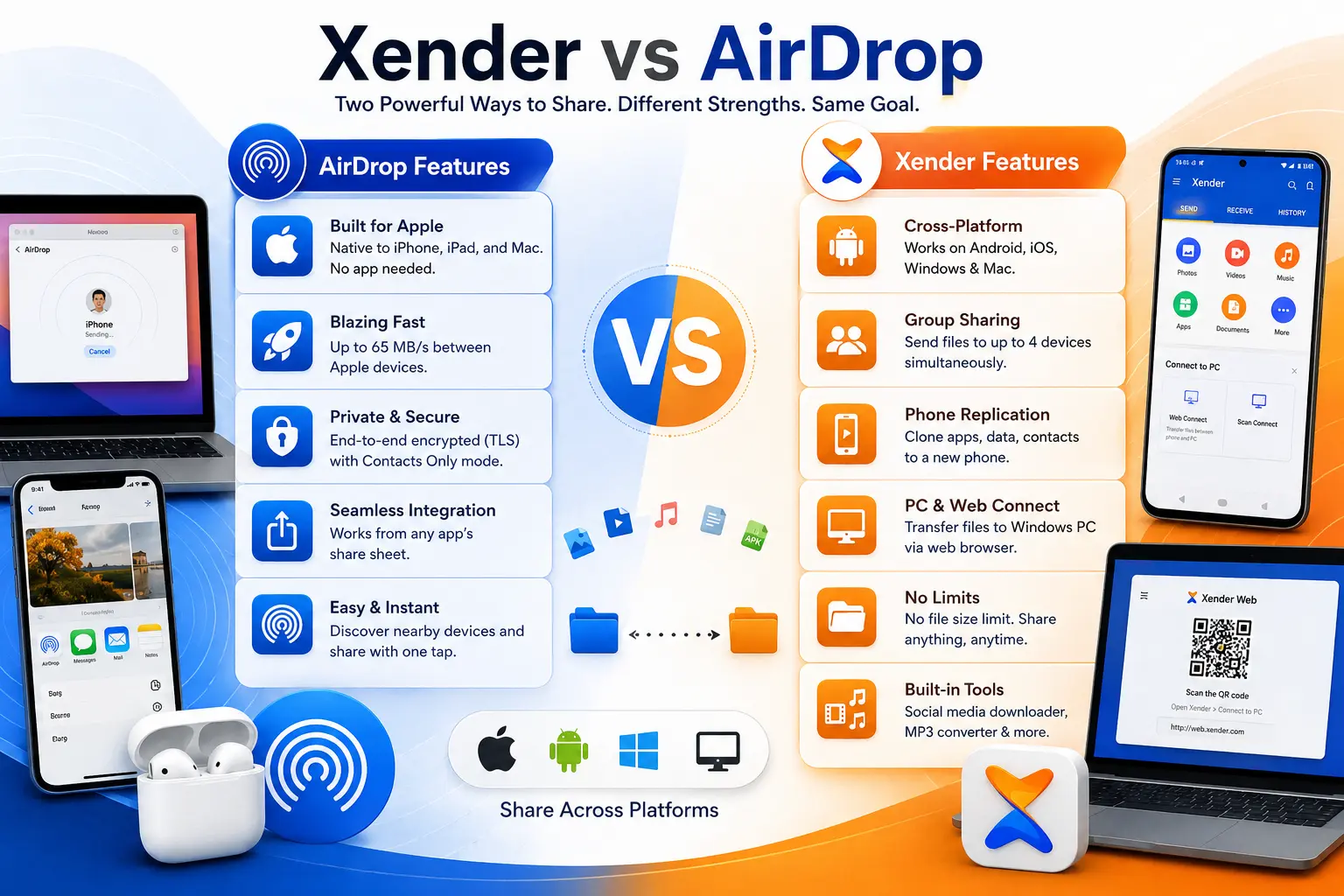
Xender vs AirDrop — Which Wireless File Transfer Tool Actually Wins in 2026?
If you have an iPhone and a MacBook, AirDrop is invisible infrastructure — it just works, every time, with nothing to configure. If you have an Android phone, AirDrop does not exist for you at all. That single fact drives most of the “Xender vs AirDrop” conversation, because the two apps are not really competing for the same users. They are solving the same problem — fast wireless file transfer — but for fundamentally different device ecosystems.
This comparison breaks down where each tool genuinely excels, where each one falls short, and which one deserves a place on your device in 2026 based on what you actually own and how you actually work.
What Each Tool Is Built to Do
🍎 What Is AirDrop?
AirDrop is Apple’s proprietary wireless file transfer system, built directly into iOS, iPadOS, and macOS. Developed by Apple Inc. and first introduced in Mac OS X Lion (2011) for Mac and iOS 7 (2013) for iPhone, it uses a combination of Bluetooth Low Energy (BLE) for device discovery and Wi-Fi Direct (802.11) for the actual file transfer. Because it is built into the operating system itself — not an app — AirDrop requires no installation, no accounts, and no setup.
📲 What Is Xender?
Xender is a standalone file transfer application developed by Xender (HK) Limited, first launched in 2013 and now used by over 500 million people across Android, iOS, Windows, and macOS. It uses Wi-Fi Direct (IEEE 802.11) for phone-to-phone transfers and a browser-based Xender Web Connect system at web.xender.com for phone-to-computer transfers.
Platform Compatibility — The Most Important Difference
| Transfer Combination | Xender | AirDrop |
|---|---|---|
| iPhone → iPhone | ✅ | ✅ |
| iPhone → iPad | ✅ | ✅ |
| iPhone → MacBook | ✅ | ✅ |
| Android → iPhone | ✅ | ❌ |
| Android → MacBook | ✅ | ❌ |
| Android → Windows PC | ✅ | ❌ |
| iPhone → Windows PC | ✅ | ❌ |
| Android → Android | ✅ | ❌ |
| Mac → Windows PC | ✅ via Web Connect | ❌ |
| iPhone → Linux | ✅ via Web Connect | ❌ |
AirDrop covers 3 platform combinations. Xender covers all of them — including every combination AirDrop cannot handle.
For users who own Apple devices exclusively and never need to share with Android users or Windows PCs, AirDrop’s coverage is sufficient. For everyone else — including anyone who regularly works with mixed-platform environments — Xender covers scenarios that AirDrop simply cannot.
Transfer Speed — Real Numbers
🚀 AirDrop Speed
AirDrop leverages Apple’s deep integration with the operating system to optimize Wi-Fi Direct connections between Apple devices. In real-world testing between modern Apple devices (iPhone 15 to MacBook Air M2, for example), AirDrop sustains transfer speeds of 25–65 MB/s, depending on file type, device generation, and signal conditions. Newer Apple Silicon Macs and recent iPhone models reach the higher end of this range.
⚡ Xender Speed
Xender on Android-to-Android transfers reaches up to 40 MB/s using Wi-Fi Direct on the 2.4 GHz and 5 GHz bands. On cross-platform transfers (Android to iPhone), speeds typically reach 15–25 MB/s due to iOS processing overhead. Xender Web Connect — used for phone-to-PC transfers — depends on local Wi-Fi quality, reaching 20–35 MB/s on 5 GHz networks.
| Transfer Type | AirDrop | Xender |
|---|---|---|
| iPhone to MacBook | 25–65 MB/s | 20–35 MB/s (Web Connect) |
| iPhone to iPhone | 25–65 MB/s | 15–25 MB/s |
| Android to Android | ❌ Not supported | Up to 40 MB/s |
| Android to MacBook | ❌ Not supported | 20–35 MB/s |
| Android to iPhone | ❌ Not supported | 15–25 MB/s |
🏆 Speed Verdict
For Apple-to-Apple transfers, AirDrop is faster — Apple’s OS-level integration gives it an edge over third-party apps on the same hardware. For any cross-platform transfer, Xender wins by default because AirDrop does not operate outside the Apple ecosystem.
File Size Limits and File Type Support
🍎 AirDrop File Limits
AirDrop has no fixed file size limit in its current implementation. Files of any size transfer without restriction between Apple devices. It supports all file types natively — photos, videos, documents, contacts, URLs, map locations, and any file that apps on the receiving device can handle.
One notable limitation: AirDrop transfers files using the apps already installed on the receiving device. If the receiver does not have an app that can open the file type, AirDrop may prompt to install one or save to Files. This is rarely an issue for common formats but can create friction with unusual file types.
📂 Xender File Limits
Xender also imposes no file size limit. A 50GB video archive transfers identically to a 2MB document. Every file type is supported: photos (JPG, PNG, HEIC, RAW), videos (MP4, MOV, MKV, 4K), audio (MP3, FLAC, WAV, AAC), documents (PDF, DOCX, XLSX, PPTX), APK installers, ZIP archives, and complete folder structures.
Xender transfers files as raw data without modification — no re-encoding, no compression, no quality reduction. The file that arrives is byte-for-byte identical to the original.
🏆 File Support Verdict
Both tools support unlimited file sizes. Xender has a slight practical advantage for APK files (which AirDrop cannot meaningfully handle since iOS cannot install APKs) and for cross-platform file type compatibility where the receiving device may not have the same app ecosystem as the sender.
Privacy and Security
AirDrop uses TLS encryption for all transfers and Bluetooth-based device discovery that allows users to control who can see their device (Everyone, Contacts Only, or Receiving Off). The Contacts Only setting uses hashed contact information to verify whether a potential sender is in your contacts before revealing your device name — a meaningful privacy feature in public spaces.
A well-documented limitation: AirDrop’s “Everyone” mode in public spaces has been exploited for unsolicited file transfers (colloquially called “AirDrop bombing”). Apple addressed this in iOS 16.1 by automatically switching to Contacts Only after 10 minutes when set to Everyone.
AirDrop transfers stay entirely within the Apple device ecosystem — no external server, no cloud relay, no third-party infrastructure.
Xender transfers happen through a direct Wi-Fi Direct peer-to-peer connection — no files pass through external servers. Unlike cloud-based sharing services, Xender’s architecture means your files never leave the local network connection between the two devices. CM Security, Lookout, and McAfee have verified the app.
Xender does not implement end-to-end encryption on its Wi-Fi Direct transfers the way AirDrop implements TLS. For casual local transfers between trusted devices in a private environment, this is not a practical concern. On public or shared Wi-Fi networks, AirDrop’s encryption model is the more robust option.
🛡 Security Verdict
AirDrop offers stronger encryption and more granular discovery controls — meaningful advantages for users in public environments or those sharing sensitive documents. Xender keeps transfers local with no server involvement, which provides privacy in a different sense. For everyday home or office use, both are safe. For sensitive documents in public settings, AirDrop’s TLS encryption is the stronger framework.
Setup and Ease of Use
AirDrop Setup
Zero. AirDrop requires no setup, no download, no account, and no configuration. It is built into every iPhone, iPad, and Mac. Enable it from Control Center on iPhone or Finder on Mac, and it discovers nearby Apple devices automatically. For users already in the Apple ecosystem, the friction of AirDrop is essentially zero.
Xender Setup
Xender requires a one-time app download — under two minutes on any device. After installation, the send-and-receive workflow is straightforward: tap Send, select files, tap the receiving device’s name. For iOS-to-Android transfers, one extra step requires connecting to a Wi-Fi hotspot, which adds 30–60 seconds on first use.
For PC and Mac connections via Xender Web Connect, the QR code scan takes 10–15 seconds after the initial navigation to web.xender.com.
Setup Verdict
AirDrop wins on convenience for Apple-only users — it requires nothing, literally. Xender’s setup is still fast, but it is an additional step that AirDrop eliminates within Apple’s ecosystem.
Unique Features Each Tool Offers
OS-level integration
AirDrop works from any app’s share sheet on iPhone and Mac — you can AirDrop directly from Photos, Files, Safari, Mail, Maps, and every other app without opening a separate transfer app. This seamless integration is something no third-party app can replicate.
Contacts-based discovery
AirDrop can show your device only to people in your contacts list — a privacy feature with no direct equivalent in Xender.
Automatic handoff
AirDrop on Mac can receive files directly into relevant apps (a photo goes to Photos, a document goes to the Downloads folder or Files) without additional steps.
Android support
The most significant functional difference. Xender works on Android; AirDrop does not exist on Android.
Phone Replication
Complete device cloning — apps, contacts, messages, settings — from one phone to another in a single session. AirDrop has no equivalent for this use case.
Group Sharing
Simultaneous transfer to up to 4 devices at once. AirDrop sends to one device at a time.
PC and Windows support
Xender Web Connect enables wireless file transfer to any Windows PC through a browser. AirDrop has no Windows support.
Social Media Downloader
Built-in downloader for WhatsApp Status, Instagram Reels, Facebook Video, and TikTok. No equivalent in AirDrop.
MP3 Converter
Extract audio from video files directly in the app. No AirDrop equivalent.
No account needed
Xender requires no Apple ID, no login, no account of any kind. AirDrop implicitly requires an Apple device — and therefore an Apple ID for App Store and ecosystem functions
When to Use AirDrop vs Xender
Use AirDrop When
Use Xender When
Xender vs AirDrop — Full Feature Comparison
| Feature | ⚡ Xender | 🍎 AirDrop |
|---|---|---|
| Android Support | ✅ Full | ❌ None |
| iOS Support | ✅ Full | ✅ Full |
| macOS Support | ✅ Web Connect | ✅ Built-in |
| Windows Support | ✅ Web Connect | ❌ None |
| Transfer Speed (Apple-to-Apple) | 20–35 MB/s | 25–65 MB/s |
| Transfer Speed (Cross-Platform) | 15–40 MB/s | ❌ Not available |
| File Size Limit | None | None |
| End-to-End Encryption | ❌ | ✅ TLS |
| Discovery Controls | Basic | Contacts Only / Everyone |
| App Installation Required | Yes (phone only) | No (built-in) |
| Group Transfer (4+ devices) | ✅ | ❌ One at a time |
| Phone Replication | ✅ | ❌ |
| Social Media Downloader | ✅ | ❌ |
| MP3 Converter | ✅ | ❌ |
| Works Without Internet | ✅ | ✅ |
| Share Sheet Integration | ❌ | ✅ Deep OS integration |
| Price | Free | Free (built-in) |
| Account Required | No | Apple ID (implicit) |
Frequently Asked Questions
Can Xender replace AirDrop?
For Apple-only users, Xender does not replace AirDrop — AirDrop’s OS-level integration and faster Apple-to-Apple speeds make it the better choice within the Apple ecosystem. For users with Android devices or Windows PCs, Xender covers transfer scenarios that AirDrop cannot handle at all, making it the necessary tool for cross-platform sharing.
Is there an AirDrop equivalent for Android?
Google’s Nearby Share (rebranded Quick Share in 2024, developed jointly with Samsung) is Android’s closest native equivalent to AirDrop — but it only works between Android devices and Chromebooks. Xender is the most capable cross-platform alternative that works between Android, iOS, Windows, and Mac without restriction.
Which is faster — Xender or AirDrop?
Between Apple devices, AirDrop is faster — reaching 25–65 MB/s compared to Xender’s 20–35 MB/s via Web Connect or 15–25 MB/s for iOS-to-Android. For cross-platform transfers (Android involved), Xender is the only option and delivers up to 40 MB/s.
Does Xender work between Android and iPhone like AirDrop?
Yes. Xender supports Android-to-iPhone and iPhone-to-Android transfers — a combination AirDrop cannot handle. The process requires connecting to a Wi-Fi hotspot created by the sending device, adding about 30 seconds to the initial setup compared to AirDrop’s zero-step process between Apple devices.
Can I use AirDrop to send files to a Windows PC?
No. AirDrop only works between Apple devices. To send files from an iPhone or Mac to a Windows PC wirelessly without cables, Xender Web Connect is the most straightforward free option.
Is Xender safe compared to AirDrop?
Both are safe for everyday use. AirDrop uses TLS encryption and offers Contacts Only discovery mode — stronger security controls for public environments. Xender keeps transfers local through Wi-Fi Direct with no server involvement, verified by CM Security, Lookout, and McAfee. For sensitive documents in public settings, AirDrop’s encryption is the stronger framework.
Does AirDrop work on Android?
No. AirDrop is proprietary Apple technology and does not exist on Android. Android users looking for a similar offline wireless file transfer experience can use Xender, which works across Android, iOS, Windows, and Mac.
Can Xender transfer files without Wi-Fi like AirDrop?
Both tools require Wi-Fi to be enabled — but neither requires an internet connection or Wi-Fi router. AirDrop uses Bluetooth for discovery and Wi-Fi Direct for transfer. Xender uses Wi-Fi Direct for all transfers. Both work in locations with no internet access as long as Wi-Fi is enabled on both devices.
Final Conclusion
Xender vs AirDrop is not a competition with a single winner — it is a question of what devices you own.
AirDrop is the better choice for transferring files within Apple’s ecosystem. Its OS-level integration, zero-setup experience, faster Apple-to-Apple speeds, and stronger encryption controls make it the obvious tool when both devices are Apple. There is no reason to install Xender for Mac if you are moving files from iPhone to MacBook.
Xender is the necessary choice the moment any non-Apple device enters the picture. Android phone, Windows laptop, mixed-platform office environment — AirDrop’s ecosystem boundary makes it irrelevant the moment a non-Apple device is involved. Xender covers every platform combination AirDrop cannot, with no file size limits, group sharing to four devices simultaneously, and cross-platform speeds that are genuinely practical for everyday use.
The most accurate summary: AirDrop is the best tool for Apple users sharing within Apple’s ecosystem. Xender is the best free tool for everyone else — and for Apple users whose files occasionally need to reach a world outside the Apple ecosystem.