
Xender vs AirDroid (2026): Transfers, Remote Control & Privacy Compared
Independence note: sharexzone.com is an independent guide blog. We are not affiliated with Xender’s developers — or AirDroid’s. This comparison is written to help you pick the right tool, not to declare a winner for its own sake. If AirDroid is the better fit for you, we’ll say so.
The short version
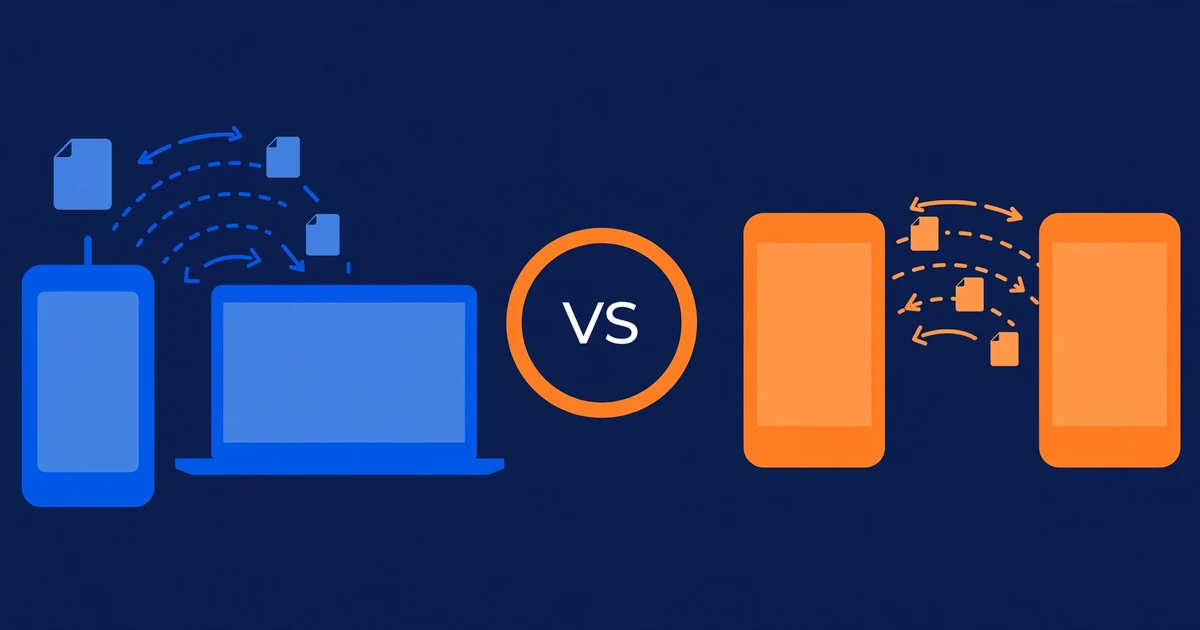
Last month I found myself in the exact situation that settles this debate: at a family gathering with no Wi-Fi, my cousin needed a 2 GB video file on my phone. I spun up Xender’s hotspot, and the file landed on his phone minutes later — no account, no internet, no cables. That is Xender’s home turf: phone-to-phone sharing over its own Wi-Fi Direct hotspot at tens of MB/s, with nothing but the app installed on both phones.
The other situation feels completely different, and that is where AirDroid earns its place. Sitting at my desk with my phone charging across the room, I answer texts, dismiss notifications, and drag files back and forth through AirDroid’s page in my PC browser — all from my keyboard, no cable — and with an account I can even reach that phone remotely over the internet. Two different headaches, two different tools: below is the honest comparison, so you can pick the one that matches yours.
Xender: profile
Xender has been around since the early 2010s and became one of the world’s most-installed file-sharing apps by doing one thing extremely well: moving files between phones at Wi-Fi speed without internet. The current widely distributed build is v19.0.0.prime (September 2026).
What Xender does best:
- Phone-to-phone speed. Xender creates a direct Wi-Fi hotspot link between devices and routinely transfers at tens of MB/s — a full movie in well under a minute on modern hardware.
- App sharing. Xender can send installed apps (as APKs) to another phone, which then installs them — a genuinely useful feature in regions with expensive or slow mobile data.
- Built-in file manager. Received files land in an organized in-app file manager (photos, videos, music, docs, apps), so you don’t need a separate app to find them.
- Group sharing. One sender can push files to multiple receivers at once.
- Network effect. After a decade on the Play Store, the odds that the person next to you already has Xender installed are high — no “go download this first” friction.
- Phone-to-PC via Direct Mode. Connect the PC to the phone’s hotspot and manage files through the browser. (Note: the old web.xender.com portal was shut down in 2026 — see our PC guide.)
Xender’s downsides:
- Ads. It’s an ad-supported free app, and the ad experience — including the permissions that feed it — is the price of “free.”
- Closed source. You can’t audit what the app does with its 40+ permissions (we explain every one of them here).
- No official desktop app. Phone-to-PC works through the browser-based Direct Mode, but there’s no native Windows/macOS/Linux client.
- iOS limitations. The iPhone build is more restricted than Android’s (a common pattern for this category, but worth knowing).
- Ban status in India. Xender remains on India’s banned-apps list from the June 2020 action — relevant if you’re there (details on ban status 2026).
AirDroid: profile
AirDroid has been around nearly as long as Xender, but it grew up solving a different problem. Instead of moving files between people, it moves control of your phone to your computer. The current build is v4.3.12.0 (August 2026) — “AirDroid: File & Remote Access” by SAND STUDIO, with 50M+ installs on Google Play.
What AirDroid does best:
- True phone-from-PC control. This is the headline feature and nothing in Xender’s feature set competes with it: manage files, SMS, and notifications from your desktop.
- Notification mirroring. Android notifications appear on your computer as they arrive, and you can reply to messages right from the desktop.
- Cable-free phone-to-PC file transfer. Drag and drop files between phone and computer over your local network, without USB cables or cloud uploads.
- Remote access over the internet. With an account, you can reach your phone from anywhere — check messages or grab a file you left at home.
- Multi-platform clients. Android and iOS apps plus web and desktop clients, so your phone is reachable from whatever computer you’re on.
AirDroid’s downsides:
- It’s not a person-to-person sharing app. Handing a video to a friend sitting next to you — Xender’s core job — is awkward in AirDroid. There’s no simple “send to this person” flow.
- Account required for the good stuff. Remote access, notification syncing across the internet, and several advanced features need an AirDroid account.
- Free tier has limits. The free plan includes 200 MB/month of remote data (remote = when you’re off your local network), a 30 MB cap per file on transfers outside your local network, and up to 2 devices. AirDroid Premium ($3.99/month or $29.99/year) removes those caps — unlimited remote data, no per-file cap, and up to 10 devices. Local-network transfers are the least restricted part of the free tier.
- Cloud routing for remote features. When you access your phone over the internet, traffic routes through AirDroid’s servers. That’s the trade-off for remote access.
- Closed source with deep access. Notification mirroring and SMS management require extensive permissions by design. That’s legitimate for the features, but it’s a lot of trust to place.
- No APK/app sharing. AirDroid moves files between your phone and your PC; it can’t package installed apps and hand them to another phone (here’s how app sharing works in Xender).
Head-to-head: the criteria table
| Criteria | Xender | AirDroid |
|---|---|---|
| Core job | Person-to-person file sharing | Managing your own phone from your PC |
| Transfer speed | Very fast (direct Wi-Fi hotspot, tens of MB/s) | Fast on the local network; remote transfers limited by your internet connection |
| Ads | Yes — ad-supported, in-app ads | Free tier: 200 MB/month remote data, 30 MB max per file off-LAN, 2 devices; Premium $3.99/mo or $29.99/yr (annual), unlimited remote data, up to 10 devices |
| Offline capability | Excellent — hotspot mode works with no router and no internet | Good nearby via local network; remote features need internet and an account |
| Cross-platform | Android, iOS (limited); PC via browser Direct Mode only | Android, iOS, web browser, Windows, macOS — phone-to-PC focus |
| File size limits | No practical limit (local transfer) | No practical limit locally; remote transfers capped at 30 MB/file on the free tier (unlimited on Premium) |
| Ease of use | Easy if the other person already has it; hotspot pairing takes a minute to learn | Easy for your own devices; poor fit for sharing with other people |
| Open source | No — closed source | No — closed source |
| Privacy | Ad/analytics stack, 40+ permissions, but direct device-to-device transfers | Account-based; remote traffic routes through company servers |
| PC connection method | Direct Mode: PC joins phone hotspot, browser-based file page (web.xender.com portal shut down 2026) | AirDroid Web / desktop client: full phone management, not just files |
| App (APK) sharing | Yes — signature feature | No |
| Group sharing | Yes — one-to-many | No — built for one user, their phone, their computer |
The verdict: who should use which
Use Xender if: you’re moving files between people — friends, family, classmates, coworkers. The hotspot works anywhere, APK sharing is unmatched, and the network effect means the other person probably has it. See our PC guide for phone-to-computer transfers.
Use AirDroid if: your actual frustration is the phone buzzing in your pocket while you work at a computer. Notification mirroring, SMS from the keyboard, and drag-and-drop file management make it the better daily driver for phone-to-PC workflows.
Use both if: you’re the kind of person who lives on both sides of this. Keep Xender for sharing with people, keep AirDroid for managing your own devices. They don’t really overlap.
One honest note: if you landed here searching “xender vs airdroid” expecting a head-to-head transfer shootout, the comparison is almost unfair — they’re built for different jobs. Xender wins at moving files between people. AirDroid wins at managing your phone from your PC. Pick the one that matches your actual need.
Frequently asked questions
Which is better for sending files to another person, Xender or AirDroid?
Xender, without contest. It creates a direct Wi-Fi hotspot between phones, needs no account and no internet, and transfers at tens of MB/s. AirDroid isn’t designed for person-to-person sharing.
Can AirDroid transfer files without the internet?
Yes — on your local network, AirDroid moves files between your phone and computer without needing internet access. But its remote features (reaching your phone from anywhere, syncing across the internet) need both an internet connection and an AirDroid account. Xender’s hotspot mode, by contrast, works with zero infrastructure at all.
Is AirDroid free?
There’s a free tier: 200 MB of remote data per month, a 30 MB cap per file on transfers outside your local network, and up to 2 devices. AirDroid Premium ($3.99/month or $29.99/year) removes those caps — unlimited remote data, no per-file cap, and up to 10 devices. Local-network transfers are the least restricted part of the free tier.
Can AirDroid share apps (APKs) like Xender does?
No. Xender’s ability to package an installed app and beam it to another phone ready for installation is a signature feature with no AirDroid equivalent. AirDroid moves files between your own phone and your computer — it isn’t built for person-to-person sharing at all.
Which is better for phone-to-PC transfers?
It depends on the job. For a one-off transfer with no setup, Xender’s Direct Mode (PC joins the phone’s hotspot, files move through the browser) is fastest — see our PC guide. For an ongoing workflow — dragging files back and forth daily, answering texts from your keyboard — AirDroid’s desktop client and notification mirroring win comfortably.
Does AirDroid work on iPhone?
Yes — AirDroid has an iOS app alongside its Android app, web client, and desktop clients. Note this comparison’s pricing and version details were verified for the Android build; iOS feature parity may vary.
Which is more private, Xender or AirDroid?
Neither is a privacy-first app, and the honest answer is “it depends what you mean.” Xender’s transfers are direct device-to-device over a local hotspot — the files never touch a server — but the app itself carries an ad/analytics stack and 40+ permissions. AirDroid’s local transfers are similarly direct, but its headline features (remote access, notification syncing) are account-based and route through company servers by design. If your threat model is “my files shouldn’t cross the internet,” both are fine locally. If it’s “minimize who sees my metadata,” Xender needs no account while AirDroid’s best features need one.