
How to Share Games with Xender: APK + OBB Data Files (Why Shared Games Crash)
Independence note: sharexzone.com is an independent guide blog. We are not affiliated with Xender’s developers, and we don’t host any apps or games — this guide is written from hands-on transfer experience to explain why a game received through Xender crashes and how to send it properly. Note: this guide is strictly about phone-to-phone game sharing. We never recommend downloading game APKs or OBB files from websites; use this method only with games you already have installed. Our general app-sharing guide (how to share apps with Xender) covers regular APK apps; this post is the deep-dive companion for games, which need an extra data step.
Why games shared via Xender crash: Xender’s “Apps” tab sends only half the game
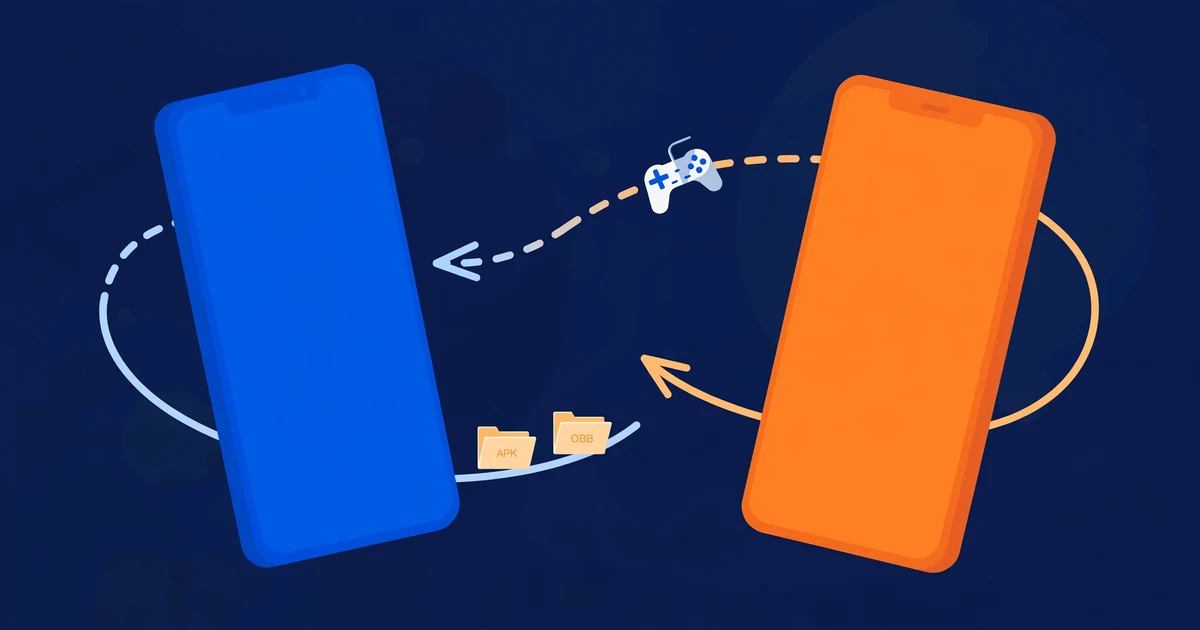
When you share an app through Xender’s Apps tab, Xender extracts and sends only the APK — the installer package. For a normal app like a calculator, that’s the whole story: the APK is the app, the receiver installs it, done.
Games are different. Modern games like PUBG Mobile, Free Fire, BGMI, or Call of Duty: Mobile ship in two parts:
- The APK — a small installer (often 100–300 MB) that sets up the app shell.
- The OBB data folder — gigabytes of game data (maps, textures, audio) stored in
Internal storage/Android/obb/<package-name>/on the sender’s phone — 3–5 GB for PUBG Mobile.
When you share the game through the Apps tab, only the APK travels — the OBB folder stays on your phone. The receiver installs the APK, taps the game icon, and it crashes immediately, shows a black screen, or starts downloading the entire multi-gigabyte data pack from the internet — defeating the point of sharing offline.
This one fact explains nearly every “the game I got via Xender doesn’t work” complaint. The fix is a two-step transfer: send the APK via the Apps tab, then send the OBB folder via the Files tab, and have the receiver place it at the exact right path before the first launch.
Diagnose your symptom first
Match what the receiver sees to the cause before re-sending anything — most of the time the problem is placement, not the transfer.
| What the receiver sees | Most likely cause | Fix |
|---|---|---|
| Game crashes instantly / black screen | OBB data missing — receiver only got the APK | Send the OBB folder (Step 2) |
| “Download resource pack” on first launch | OBB missing or in the wrong folder | Re-place at the exact path (Step 3) |
| “OBB not found” / “data verification failed” | OBB from a different game version than the APK | Re-share both from the same install |
| Opens, then crashes mid-menu | Corrupted or incomplete OBB transfer | Re-send and verify size |
| APK install fails or the “APK” is tiny | Game installed as a split APK bundle | Split-APK workaround |
Note: these diagnoses assume the receiver has enough free space. A 5 GB OBB needs comfortably more than 5 GB free — room to hold the transfer, place it in the obb folder, and let the game verify it. Check free space before blaming the transfer.
The two-part workflow: APK via Apps tab, OBB via Files tab
Step 1 — Send the APK via Xender’s Apps tab
- On the sender’s phone, open Xender → Apps, find the game, and tap Share/Send.
- On the receiver’s phone, accept it — it arrives as an APK, usually in the Xender folder on internal storage (where Xender saves received files).
- Do not install it yet. Do the OBB step first — installing early can create an empty
obb/<package-name>/folder, and the game may start downloading data over the internet before you intervene.
Both halves must come from the same installed copy on the same sender phone — APK and OBB are versioned together, and mixing sources is the #2 cause of post-transfer crashes (see the version rule below).
Step 2 — Send the OBB folder via Xender’s Files tab
This is the step everyone skips — and the entire reason shared games crash.
- On the sender’s phone, open Xender → Files tab and go to Internal storage → Android → obb. Find the folder matching the game’s package name — e.g.
Android/obb/com.tencent.ig/for PUBG Mobile (verify examples at publish time). - Long-press the entire folder and share it with the receiver. If your Xender version only sends files rather than folders, send each file inside (usually one large
.obbfile) and the receiver recreates the folder. - On the receiver’s phone, compare the received folder’s size against the sender’s — a size mismatch means a partial transfer. For slow or dropping transfers, see fix Xender connection failures and large-file transfer tips.
Step 3 — Place the OBB at the exact path BEFORE installing the APK
Order matters. Do this before tapping Install:
- On the receiver’s phone, open a file manager (Xender’s built-in one, or a capable explorer — see the Android 11+ note).
- Go to Internal storage → Android → obb. If a folder with the game’s package name already exists (possibly created empty by a previous attempt), delete it — an empty folder can trick the game into thinking data is present.
- Move the received folder in so the final path is exactly
Internal storage/Android/obb/<package-name>/main.<version>.<package>.obb. - Confirm the path letter-for-letter — the game looks in exactly one place. Never rename the
.obbfile itself: the filename encodes the version, and the game verifies it. - Now install the APK and launch. It should start straight into the game instead of a download screen.
The version-match rule: APK and OBB must be a pair
A game’s APK and OBB are versioned together: APK version 19018 expects OBB version 19018. If the receiver’s APK is newer or older than the OBB, the game rejects the data — “data verification failed”, a forced re-download, or an instant crash.
- Send both halves from the same phone, same install. Don’t mix an APK from one friend with an OBB from another.
- Update first, then share. Update the sender’s game first if an update is pending.
- Quick sanity check: the OBB filename contains the version (
main.19018.com.tencent.ig.obb). Compare it against the game version in the sender’s game settings.
The split-APK caveat
Many games installed from the Play Store don’t arrive as a single APK — Google Play serves them as app bundles (a base APK plus split configuration APKs), which Xender’s Apps tab may only partially extract. If the received “APK” is far smaller than expected, or the install fails with a package error, this is likely why.
What to do instead: have the sender repackage the game into a single installable file (XAPK/APKS) with a split-APK installer tool before sending — verify current tooling at publish time. Or simpler: the receiver installs the game normally from the Play Store (the small part) and you share only the OBB via Xender — the data is the multi-GB part you wanted to avoid downloading anyway. OBB placement works the same either way.
The Android 11+ scoped-storage note
Since Android 11, Google restricted which apps can browse Android/obb — the system file manager shows the folder as empty even when it’s full. This isn’t a missing-folder bug; it’s scoped storage.
Use Xender’s own built-in file manager (it requests the “All files access” permission — also how it can send the OBB in the first place) or a dedicated explorer explicitly granted “All files access” in Settings → Apps → Special app access → All files access. Both sender and receiver may need this: without it, the APK transfers fine (APKs aren’t restricted) while the OBB half silently fails or looks empty — another classic crash-on-launch cause.
Still crashing after the OBB is placed: run this checklist
Don’t re-send anything until you’ve checked each item:
- Wrong package folder — the folder name in
Android/obb/must match the game’s package name exactly. - Version mismatch — the OBB filename’s version must match the APK’s game version; re-share both halves from the same phone if they differ.
- Corrupted transfer — compare the received folder size with the sender’s. Multi-GB transfers can get cut short on unstable connections.
- OBB placed after first launch — if the game was launched before the OBB arrived, it may have cached the “no data” state. Uninstall, delete the package folder from
obb/, and redo Step 3. - Free space — the receiver needs comfortably more free space than the OBB size.
If all five pass, the phone itself is likely the issue — insufficient RAM, an incompatible chipset, or an unsupported Android version. No amount of re-sending fixes that; check the game’s own minimum requirements before another attempt.
A warning about “free” game files from the internet
You’ll find websites offering “PUBG APK + OBB” or “Free Fire MOD APK” downloads. Treat them all with suspicion — game files from random sites are a classic malware and spyware vector, and “MOD APKs” routinely come bundled with adware (see our mod-APK risk guide). The whole point of this method is that you don’t need the internet for the game files at all: the game is already installed on the sender’s phone, Xender moves it phone-to-phone over a local connection, and no download link is involved. If someone points you at a website for game files, that’s not this method — and not one we recommend.
Note: this applies to paid games too. Sharing a paid game’s APK + OBB with someone who hasn’t bought it is piracy regardless of convenience. This guide is for legitimate situations — saving mobile data on a friend’s identical install, or restoring a game after a factory reset.
Frequently Asked Questions
Why does a game shared via Xender crash immediately on the receiver’s phone?
Because Xender’s Apps tab sends only the APK — the installer — and not the game’s OBB data folder. Games like PUBG or Free Fire store gigabytes of data in Internal storage/Android/obb/<package-name>/. Without it the game has nothing to load, so it crashes. Send the OBB folder via Xender’s Files tab and place it at the exact path before launching.
How do I send PUBG via Xender so it works on my friend’s phone?
Two steps from the same phone: share the game through Xender’s Apps tab (this sends the APK — don’t install it yet), then go to Xender’s Files tab and send the entire Internal storage/Android/obb/com.tencent.ig/ folder. On the receiver’s phone, place that folder at the exact same path, then install the APK and launch. Both halves must come from the same installed copy so their versions match.
Where exactly does the OBB folder go on the receiver’s phone?
Exactly here: Internal storage/Android/obb/<package-name>/ — e.g. Internal storage/Android/obb/com.tencent.ig/ for PUBG Mobile. The folder name must match letter-for-letter, the .obb file inside must not be renamed, and it must be placed before the APK is installed and before the first launch.
Can I share a game with Xender if it was installed from the Play Store as split APKs?
Not directly as one clean APK — Play Store app bundles ship as multiple split APKs, which Xender’s Apps tab may only partially extract. If the received APK is far smaller than expected or install fails, repackage with a split-APK installer tool first (verify current tooling at publish time), or install the game normally from the Play Store and share only the OBB — the data is the huge part anyway, and OBB placement works the same either way.
The game still crashes even after I placed the OBB folder. What now?
Check in order: (1) the folder name in Android/obb/ matches the package name exactly; (2) the OBB filename’s version matches the APK’s game version — mismatched halves are rejected; (3) the received folder size matches the sender’s, since large transfers can get cut short; (4) the OBB was placed before the first launch — if the game was launched first, uninstall and redo it. If all checks pass, the phone likely can’t run the game (RAM/chipset/OS), not the transfer.
Why can’t I find the Android/obb folder on my phone?
Since Android 11, scoped storage blocks the system file manager from browsing Android/obb — it appears empty even when full. Use Xender’s built-in file manager (it has All-files access) or grant a dedicated explorer “All files access” in Settings → Apps → Special app access. Both sender and receiver may need this to handle the OBB folder.
Is it safe to download game APKs and OBB files from websites instead of sharing phone-to-phone?
No — and that’s what this method avoids. Random “APK + OBB” download sites are a common malware source, and MOD APKs are routinely bundled with spyware or adware. This guide transfers files you already have installed on your own phone, locally, with no download links involved. If someone sends you to a website for game files, that’s not the method described here.