
Xender Phone Replication — Complete Guide to Cloning Your Phone in 2026
Switching to a new Android phone used to mean one of three things: spending an hour with a USB cable and a PC, waiting for a cloud backup to restore over a slow internet connection, or manually reinstalling every app and re-entering every password from scratch. Xender Phone Replication removes all three of these options from the equation.
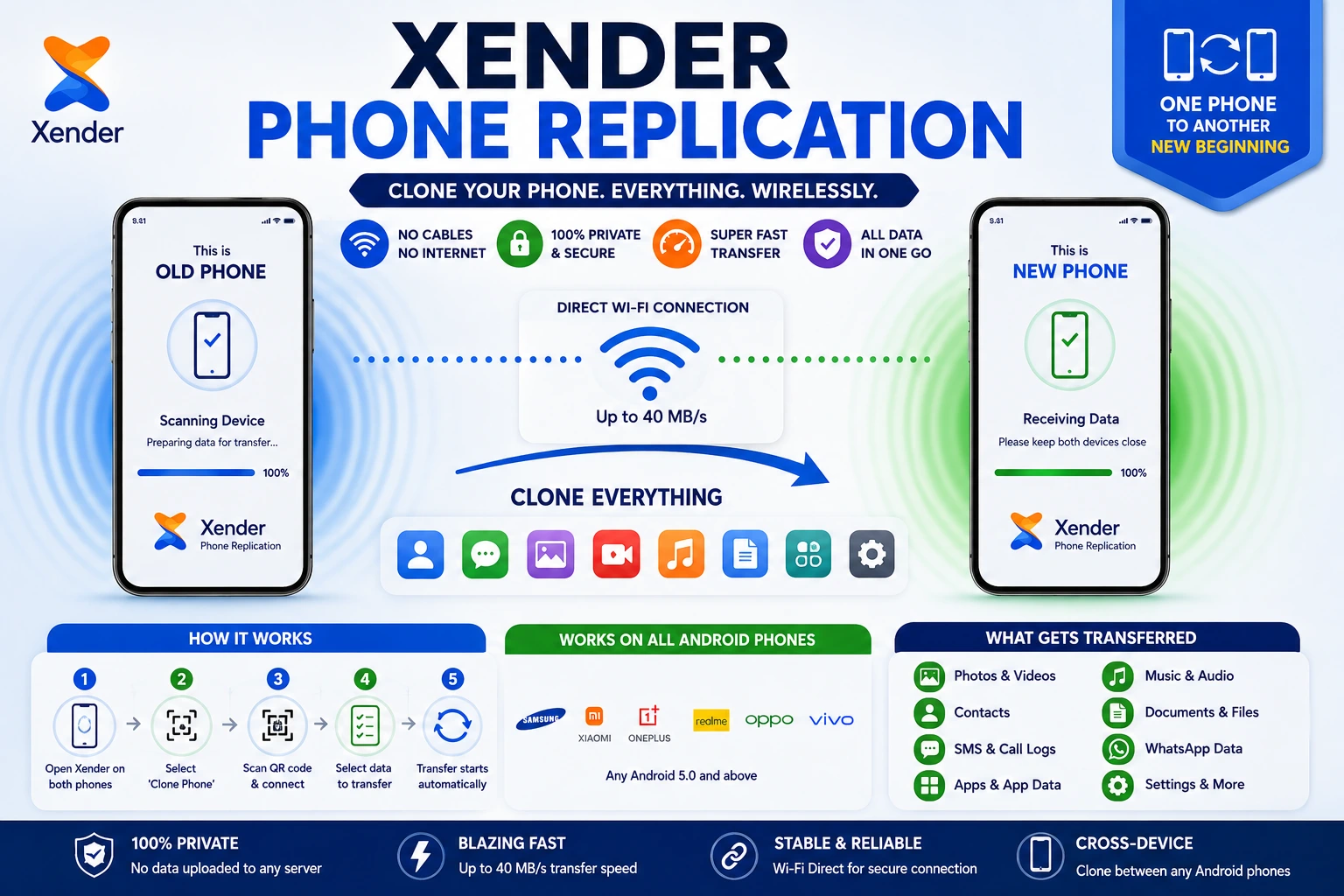
Phone Replication is Xender’s device cloning feature — it copies everything from an old Android phone to a new one in a single wireless session. Apps, along with their saved data, contacts, SMS messages, call logs, photos, videos, music, documents, WhatsApp data, and device settings, all move in one go. No cable. No PC. No internet. No cloud account. Just two phones close together and Xender running on both.
This guide covers exactly how it works, the specific preparation steps that prevent failure, what transfers and what does not, how long it takes, and every fix for the problems that stop it midway.
What Is Xender Phone Replication?
Phone Replication — also labeled Clone Phone inside the Xender app — is a one-to-one device migration tool built into Xender v16.0 and above, developed by Xender (HK) Limited. It uses the same Wi-Fi Direct (IEEE 802.11) peer-to-peer connection that powers all Xender transfers, but instead of selecting individual files, it captures a structured snapshot of the old device and reconstructs it on the new one.
The feature is available exclusively on Android. Apple’s iOS restricts third-party apps from accessing system-level data — installed app states, SMS databases, and contact records — which makes full device cloning through a third-party app impossible on iPhone. Phone Replication works between any two Android phones running Android 5.0 or above, regardless of manufacturer.
Is Xender Phone Replication the same as Samsung Smart Switch? They solve the same problem but differ in scope and flexibility. Smart Switch is optimized for Samsung-to-Samsung migration and transfers full app data more completely for Samsung’s own apps. Xender Phone Replication works between any two Android phones regardless of brand — a Xiaomi to a OnePlus, a Realme to a Samsung, or any other combination. For cross-brand migrations, Xender is the more practical tool.
What Xender Phone Replication Transfers
Understanding exactly what moves — and what does not — prevents surprises after the clone completes.
What Transfers Completely
- Photos and videos — full original resolution, no compression
- Music and audio files — all formats (MP3, FLAC, WAV, AAC)
- Documents — PDF, Word, Excel, PowerPoint, text files
- Downloaded files — everything in the Downloads folder
- Contacts — names, numbers, emails, notes
- SMS messages and call logs — full history
- WhatsApp media — photos, videos, and audio received in WhatsApp
- Installed APK files — app installers that can be reinstalled
- Device settings — Wi-Fi passwords, display settings, ringtones
- Home screen layout — app arrangement and widget placement
What Transfers with Limitations
- Installed apps — the app packages transfer, but some apps require re-login on the new device due to security tokens being device-specific
- App data and saved progress — transfers for most apps, but apps using cloud sync (Google, Facebook, Instagram) regenerate data from their own servers on first login
- WhatsApp chat history — WhatsApp’s own database encryption means chats may require WhatsApp’s migration tool for complete transfer; media transfers fully but chat history may need separate handling.
What Does Not Transfer
- Banking apps and financial data — these use device-level security (Android Keystore) and intentionally prevent data export to any tool including Xender
- DRM-protected content — licensed media locked to a specific device
- Secure Folder content (Samsung) — Samsung Knox encryption prevents third-party access
- Google Authenticator codes — require Google’s own migration tool
- iOS data — Phone Replication is Android-only
Before You Start — Preparation That Prevents Failure
Most Phone Replication failures happen because of one skipped preparation step. Complete all of these before initiating the clone.
Check Storage Space on the New Phone
The new phone needs enough free storage for everything on the old phone. If the old phone has 18 GB of data and the new phone only has 10 GB free, the transfer will fail partway through.
Check: Settings → Storage on both phones. Free storage on the new phone must exceed used storage on the old phone.
Disable Battery Optimization for Xender on Both Phones
This is the single most important preparation step. Android’s battery management kills background processes — including Xender — during long sessions. A 20 GB clone takes 8–15 minutes. Without disabling battery optimization, the process will be interrupted on most Android devices.
On standard Android:
Settings → Apps → Xender → Battery → Unrestricted
On Samsung One UI:
Settings → Apps → Xender → Battery → Unrestricted
AND
Settings → Device Care → Battery → Background Usage Limits → add Xender to Apps that won’t be put to sleep
On Huawei / Honor EMUI:
Settings → Apps → Xender → Battery → No restrictions
AND
Settings → Battery → App launch → Xender → Manage manually → enable Background activity
Set Screen Timeout to Never on Both Phones
A locked screen pauses Phone Replication on most Android devices because the screen lock triggers battery conservation that restricts the app’s active process.
Settings → Display → Screen Timeout (or Auto-Lock) → Never
Re-enable your normal screen timeout after the clone completes.
Charge Both Phones Above 50%
A low battery on either phone mid-transfer can force Android to aggressively kill background processes even with battery optimization disabled. Start with both phones above 50% charge, or keep them plugged in throughout the session.
Place Both Phones Within 30cm of Each Other
Wi-Fi Direct signal stability is critical for a multi-gigabyte continuous transfer. Beyond 1 meter, the connection remains functional but throughput drops. Signal inconsistency during large transfers causes partial failures that require restarting. Side by side on a flat surface is the optimal position.
Update Xender to the Latest Version on Both Phones
Phone Replication improvements are included in major Xender version updates. Mismatched versions — v16.x on one phone and v18.x on the other — can cause handshake failures. Update both phones to Xender v18.5.0 through the Google Play Store before starting.
How to Use Xender Phone Replication — Step by Step
With preparation complete, the process itself takes about 3 minutes to set up and then runs automatically.
Step 1 — Open Clone Phone on the Old Device
- Open Xender on the old phone
- Tap the profile icon at the top left of the screen
- Tap Clone Phone (may also appear as Phone Replication depending on version)
- Select This is the old phone
- A QR code appears on the old phone’s screen — keep this visible and the screen on.
Step 2 — Connect from the New Device
- Open Xender on the new phone (install from Play Store if not already installed)
- Tap the profile icon
- Tap Clone Phone
- Select This is the new phone
- Tap Scan QR code
- Point the new phone’s camera at the QR code on the old phone
- Connection establishes — both screens show “Connected” confirmation
Step 3 — Select Categories and Start
After connection, a category selection screen appears on the new phone showing all available data types with their sizes:
- Apps
- Photos
- Videos
- Music
- Contacts
- SMS
- Documents
- Settings
Tap Select All to clone everything, or uncheck categories you do not want. Tap Start Transfer.
The old phone’s screen shows a broadcast animation. The new phone shows a real-time progress bar with transfer speed, percentage complete, and estimated time remaining.
Step 4 — Wait Without Interrupting
Do not:
- Lock either screen
- Switch to other apps on either phone
- Move the phones apart
- Turn off Wi-Fi on either phone
The transfer runs automatically. For a 15 GB dataset at 35 MB/s, expect approximately 7–8 minutes. For a 20 GB dataset, expect 9–15 minutes depending on file types and processor speed.
Step 5 — Complete and Verify
When the progress bar reaches 100% and the completion screen appears, tap Done.
On the new phone:
- Open the Gallery — photos and videos should be present
- Open Contacts — all contacts should appear
- Open Messages — SMS history should be visible
- Check the app list — installed apps should appear in the app drawer
Some apps require first-launch login due to device-specific security tokens. This is expected behavior and not a transfer failure.
How Long Does Xender Phone Replication Take?
Transfer time depends on total data size and the Wi-Fi standard both devices support.
| Data Size | Xender Speed (Wi-Fi 6) | Estimated Time |
|---|---|---|
| 5 GB | 35–40 MB/s | ~2–2.5 minutes |
| 10 GB | 35–40 MB/s | ~4–5 minutes |
| 15 GB | 35–40 MB/s | ~6–7 minutes |
| 20 GB | 35–40 MB/s | ~8–10 minutes |
| 30 GB | 35–40 MB/s | ~13–15 minutes |
| 20 GB | 8–12 MB/s (Wi-Fi 4) | ~28–42 minutes |
Xender Phone Replication vs Alternatives
| Method | Cross-Brand | Internet Required | Full App Data | Speed | Cable Required |
|---|---|---|---|---|---|
| Xender Phone Replication | ✅ Any Android | No | Partial | Up to 40 MB/s | No |
| Samsung Smart Switch | ⚠️ Samsung-optimized | No | More complete | 15–25 MB/s | Optional |
| Google Backup & Restore | ✅ Any Android | Yes | Partial (no SMS) | Internet-limited | No |
| USB Cable + PC | ✅ Any Android | No | Files only | 25–120 MB/s | Yes |
| Manual Setup | ✅ Any | N/A | None | N/A | N/A |
Common Xender Phone Replication Problems and Exact Fixes
Replication Stops Midway at a Percentage
Cause: Battery optimization pausing Xender on one of the devices.
QR Code Scan Fails or Shows Error
Cause: Lighting conditions are too dark for camera QR reading, or screen brightness is too low on the old phone.
Connection Established but Transfer Does Not Start
Cause: Storage on the new phone is full or insufficient.
Apps Transferred but Won’t Open on New Phone
Cause: Some apps are installed but need a fresh login because their device-specific security tokens do not transfer — this is intentional app security, not a Xender failure.
Transfer Very Slow (Under 5 MB/s)
Cause: One or both phones are on 2.4 GHz Wi-Fi 4, or battery optimization is throttling Xender’s processor allocation.
Replication Fails Repeatedly on Samsung
Cause: Samsung’s Device Care battery management is more aggressive than standard Android optimization and uses a separate system from the standard battery optimization setting.
Frequently Asked Questions
Q: What is Xender Phone Replication?
Xender Phone Replication is a device cloning feature that copies apps, contacts, SMS, photos, videos, music, documents, and settings from one Android phone to another in a single wireless session. It uses Wi-Fi Direct — no internet, no cables, and no PC required. It is available on Android 5.0 and above.
Q: How long does Xender Phone Replication take?
Transfer time depends on data size and Wi-Fi speed. On devices with Wi-Fi 6 support, 20 GB of data transfers in approximately 8–10 minutes. On Wi-Fi 4 devices, the same data takes 28–42 minutes. Setup and verification add 2–3 minutes to any transfer.
Q: Does Xender Phone Replication work on iPhone?
No. Phone Replication is Android-only. Apple’s iOS restricts third-party apps from accessing system-level data including installed app states, SMS databases, and contacts without specific permission prompts. This makes full device cloning through a third-party app impossible on iPhone.
Q: Why does Xender Phone Replication keep stopping?
The most common cause is Android battery optimization pausing Xender during the long transfer session. Fix it by going to Settings → Apps → Xender → Battery → Unrestricted on both phones. On Samsung, additionally go to Settings → Device Care → Battery → Background Usage Limits and add Xender to the never-sleep list.
Q: Does Xender Phone Replication transfer WhatsApp chats?
Xender transfers WhatsApp media files — photos, videos, audio — completely. WhatsApp chat history uses its own encrypted database that WhatsApp’s app manages. For complete chat history transfer, use WhatsApp’s built-in migration tool or Google Drive backup alongside Xender’s media transfer.
Q: Can I use Xender Phone Replication between different Android brands?
Yes. Xender Phone Replication works between any two Android phones running Android 5.0 or above, regardless of manufacturer — Xiaomi to Samsung, OnePlus to Realme, Nokia to Motorola, or any other combination.
Q: Does Xender Phone Replication need internet?
No. Phone Replication uses Wi-Fi Direct — a direct peer-to-peer connection between two devices. No internet, no mobile data, and no router is required. Wi-Fi must be enabled on both phones as the hardware radio Xender uses, but no network connection is needed.
Q: What is the difference between Xender Phone Replication and Clone Phone?
They are the same feature. Depending on the Xender version and device, the feature appears as either Phone Replication or Clone Phone inside the app. Both open the same device migration tool through the profile icon menu.
Final Conclusion
Xender Phone Replication removes the biggest friction points from switching Android phones — no cable hunt, no PC setup, no slow cloud restore over limited internet, no manual app reinstallation. The entire process from opening the app to completing the transfer runs in under 15 minutes for most users.
The preparation steps matter more than anything else. Battery optimization disabled on both phones, screens set to stay on, devices within 30 cm, and storage confirmed — skip any one of these and the transfer is likely to fail or slow down significantly. Do all four and the clone runs to completion without intervention.
For cross-brand Android migrations specifically — where tools like Samsung Smart Switch are brand-restricted — Xender is the most practical free option available that requires no cables, no PC, and no internet connection.