

Xender Group Sharing — Send Files to Multiple Devices at Once (Complete 2026 Guide)
Sending the same file to five different people one at a time wastes time that does not need to be wasted. Xender’s Group Sharing feature, developed by Xender (HK) Limited, solves this directly — one device broadcasts files to up to four recipient devices simultaneously, each receiving the full file at full transfer speed, with zero internet and zero mobile data required.
This guide covers exactly how Group Sharing works on Android, iOS, and cross-platform combinations; its real limits; common failures and fixes; and how it compares to sending files individually or using alternative apps.
How Does Xender Group Sharing?
Group Sharing is a one-to-many file transfer mode in Xender that uses the same Wi-Fi Direct (IEEE 802.11) technology that powers all of Xender’s transfers. Instead of a single direct connection between two devices, one device acts as a host and creates a local Wi-Fi hotspot that up to four other devices join as receivers.
Once joined, the host broadcasts selected files — photos, videos, documents, APKs, or entire folders — to all connected devices simultaneously. Each receiver gets the complete file independently; the transfer does not split bandwidth in a way that meaningfully slows down per additional device, because Wi-Fi Direct’s available bandwidth comfortably exceeds what four simultaneous file streams require.

Xender Group Sharing Limit — How Many Devices Can Join?
The most commonly searched question about this feature has a precise answer: Xender Group Sharing supports up to 4 receiving devices per group session, in addition to the host device — meaning 5 devices total can participate in a single group transfer.
This limit exists because Wi-Fi Direct hotspots have a practical connection ceiling, and Xender’s engineering keeps the limit at 4 receivers to guarantee stable transfer speeds across all connected devices. Attempting to add a sixth device typically results in a “Group Full” message or the device failing to appear in the host’s connection list.
For groups larger than 5 people, the practical workaround is to run two separate group sessions — splitting the group into two batches of up to 5 people each.
How to Use Group Sharing on Android
Step 1 — Host Creates the Group
On the device that has the files to share:
- Open Xender
- Tap the Group icon at the bottom of the screen
- Select Create Group
- Xender generates a local Wi-Fi hotspot — the group name appears on screen
Step 2 — Receivers Join the Group
On each receiving Android device:
- Open Xender
- Tap Group
- Select Join Group
- Xender automatically scans for nearby groups — tap the host’s group name to connect
Step 3 — Transfer Files
- Once all devices show as connected on the host’s screen
- The host selects files — single files, multiple files, or entire folders
- Tap Send
- All connected devices receive the files simultaneously
How to Use Group Sharing on iOS (iPhone & iPad)
iOS handles Group Sharing with one additional step compared to Android, due to Apple’s stricter Wi-Fi connectivity restrictions at the system level.
Creating a Group on iPhone
Open Xender
Tap Group
Select Create Group — Xender generates a Wi-Fi hotspot
Joining a Group on iPhone
Go to iOS Settings → Wi-Fi
Find and connect to the hotspot created by the host device (appears as “Xender_XXXXXX”)
Return to Xender, tap Group, select Join Group
Once connected, file reception begins automatically when the host sends
Important for iOS: Each iOS device must manually connect to the host’s Wi-Fi hotspot through Settings → Wi-Fi before Xender can detect it. This is an Apple-imposed step — Android devices can discover groups directly within the app without leaving it.
Cross-Platform Group Sharing — Android Host with iOS Receivers
Mixed groups — one Android device hosting, with both Android and iOS devices receiving — work, with the iOS devices following the manual Wi-Fi connection step above.
Setup Steps for Mixed Android/iOS Groups
Android host creates the group (Group → Create Group)
Android receivers join directly through Xender’s group scanner
iOS receivers connect to the host’s hotspot via Apple’s stricter Wi-Fi connectivity restrictions , then open Xender and tap Join Group
Host confirms all devices appear in the connected list, then sends files
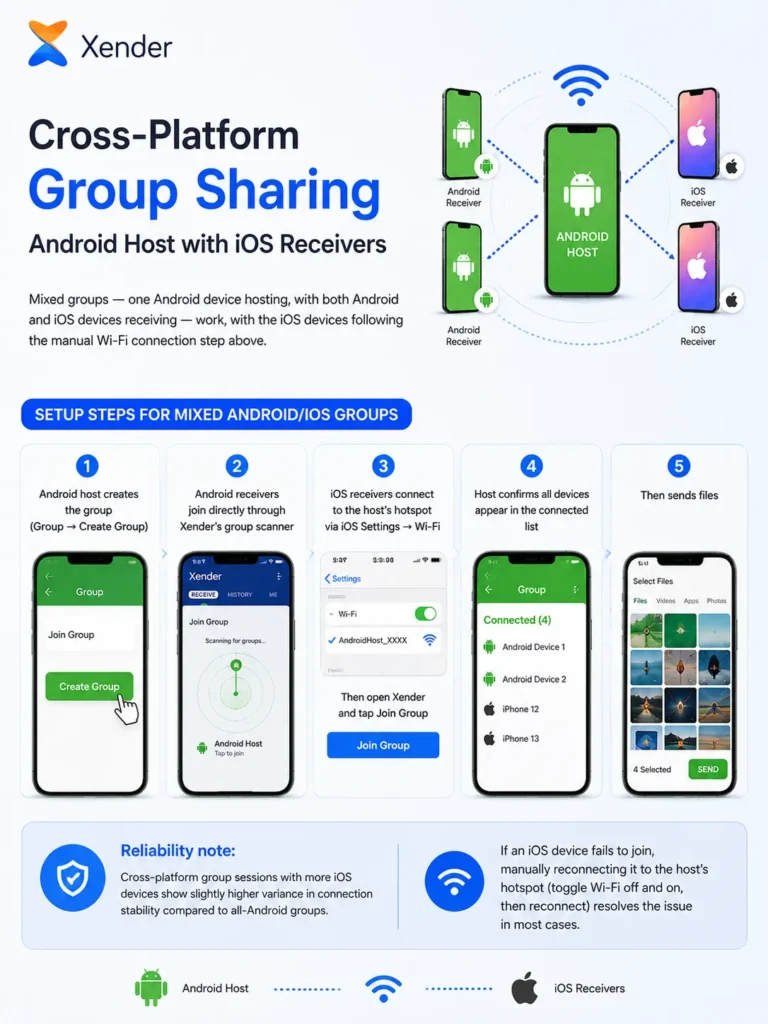
Cross-Platform Group Sharing — Android Host with iOS Receivers
Mixed groups — one Android device hosting, with both Android and iOS devices receiving — work, with the iOS devices following the manual Wi-Fi connection step above.
Setup Steps for Mixed Android/iOS Groups
What File Types and Sizes Work in Group Sharing?
Group Sharing supports the same file types as standard Xender transfers, with no special restrictions for group mode:
Common Group Sharing Problems and Fixes
“Group Full” Error
This appears when a 6th device attempts to join a session that already has 5 (host + 4 receivers). Either remove a connected device or start a second group session for additional participants.
Devices Not Appearing in Group Scanner
On Android: Ensure Location permission is enabled for Xender — Wi-Fi Direct discovery requires Location access on Android 8 and above. Go to Settings → Apps → Xender → Permissions → Location → Allow.
On iOS: Confirm the device has connected to the host’s Wi-Fi hotspot through Settings → Wi-Fi before opening Xender. iOS devices will never appear in the in-app scanner without this manual step first.
Transfer Stalls for One Device While Others Complete
This typically happens when one device’s screen locks during transfer. Set Screen Timeout to Never on all participating devices before starting a group session, particularly for transfers exceeding 500MB.
Group Disconnects Mid-Transfer
Usually caused by a device moving out of Wi-Fi Direct range — the effective range for group sessions is approximately 20–25 meters, slightly less than for 1-to-1 transfers due to the additional connections the hotspot manages. Keep all devices within this range for the duration of the transfer.
Group Sharing vs Sending Files Individually — Time Comparison
| Scenario | Individual 1-to-1 Transfers | Group Sharing (4 devices) |
|---|---|---|
| A 200MB file to 4 people | ~52 seconds total (4 x ~13s) | ~18 seconds total |
| 1GB file to 4 people | ~100 seconds total | ~30 seconds total |
| Setup time | Repeat connection 4 times | One-time group setup |
| Reliability | High (proven 1-to-1 path) | High, slightly lower with mixed iOS groups |
Best Use Cases for Group Sharing
Classrooms and training sessions — a teacher distributes lecture slides, study material, or assignment files to up to four student devices in one action, repeated for additional groups of four if the class is larger.
Office and team settings — distributing a presentation, report, or shared project folder to multiple colleagues simultaneously without emailing large attachments.
Social events and gatherings — sharing event photos or videos with several friends at once instead of sending them one by one through messaging apps that compress images.
Family device setup — when setting up multiple new phones for family members, the same set of apps (APK files), photos, or media can be pushed to all devices at once.
Frequently Asked Questions
Q1: How many devices can join Xender Group Sharing?
Xender Group Sharing supports up to 4 receiving devices per session, plus the host device — 5 devices total. Attempting to add a 6th device results in a “Group Full” message. For larger groups, run a second group session.
Q2: Does Xender Group Sharing work without internet?
Yes. Group Sharing uses Wi-Fi Direct, the same offline technology behind all Xender transfers. No internet connection, mobile data, or router is required at any point.
Q3: Can Android and iOS devices be in the same Xender group?
Yes. Cross-Platform Group Sharing works with an Android host and a mix of Android and iOS receivers. iOS devices require one extra step — manually connecting to the host’s Wi-Fi hotspot in Settings before joining the group in Xender.
Q4: Why is my device not appearing in Xender’s group scanner?
On Android, this is almost always a missing Location permission — required for Wi-Fi Direct discovery on Android 8 and above. On iOS, the device must first manually connect to the host’s Wi-Fi hotspot in Settings → Wi-Fi; otherwise, it will not appear in the scanner.
Q5: Is there a file size limit for Group Sharing?
No. Group Sharing has no file size limit. A 2GB video transfers to all connected devices the same way a small document would — the only constraint is available storage on the receiving devices.
Q6: How fast is Group Sharing compared to sending files one by one?
For 3 or more recipients, Group Sharing is faster overall. A 200MB file to 4 people takes approximately 18 seconds via Group Sharing, versus approximately 52 seconds when sent individually — the savings come primarily from eliminating repeated connection setup.
Q7: Why does my group disconnect during a large transfer?
The most common cause is a device moving outside the Wi-Fi Direct range, which is approximately 20–25 meters for group sessions. Keep all devices within this range, and set the screen timeout to Never during transfers over 500 MB.
Q8: Can I send APK files through Group Sharing to iPhone users?
APK files can be sent to iOS devices through Group Sharing, but iOS cannot install APK files — this is an Apple system restriction, not a Xender limitation. APK files in group transfers function normally for Android receivers only.
Final Conclusion
Xender Group Sharing turns a repetitive task — sending the same file to several people, one connection at a time — into a single action that completes in roughly the time it takes to transfer one file. With support for up to 5 devices per session, full offline operation via Wi-Fi Direct, no file size limits, and cross-platform compatibility between Android and iOS, it covers the vast majority of real-world group-sharing scenarios: classrooms, offices, and social gatherings.
The setup difference between Android and iOS comes down to one extra step — iOS devices must manually join the host’s Wi-Fi hotspot before Xender can detect them, a restriction imposed by Apple rather than Xender itself. Once connected, transfer speed and reliability are consistent across platforms.
For anyone regularly sharing files with three or more people at once, Group Sharing is not an optional extra feature — it is the fastest method Xender offers and one of the few free tools that handle multi-device offline transfers this cleanly.