
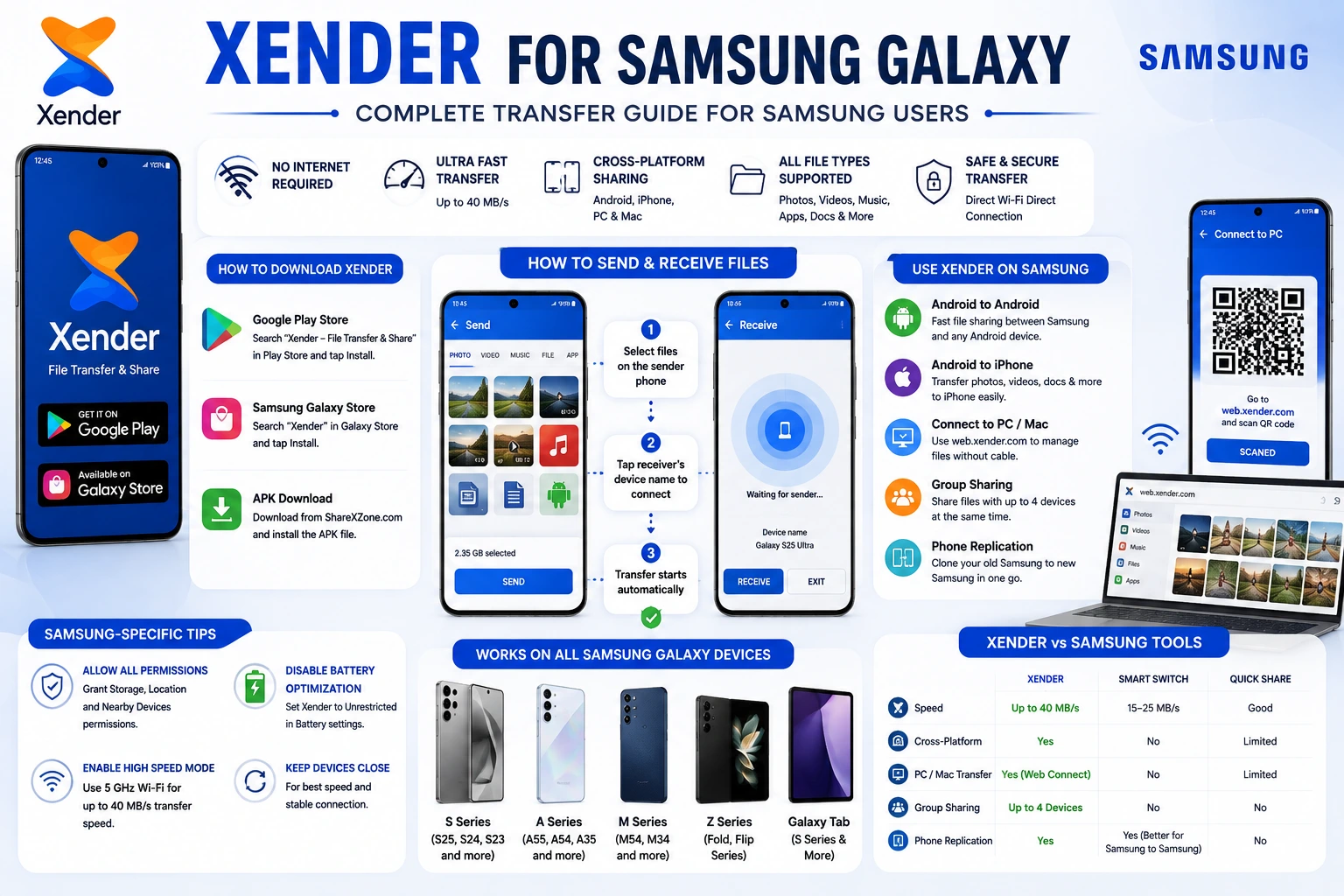
Xender for Samsung Galaxy — Complete Transfer Guide for 2026
Samsung is the world’s largest Android phone manufacturer. Galaxy devices run on One UI — Samsung’s custom Android skin built on top of Android 14 and Android 15 on current models — which means some Xender behaviors, permissions, and settings look slightly different on a Galaxy phone compared to stock Android.
This guide is written specifically for Samsung users. It covers how Xender behaves on One UI, how it compares to Samsung’s own Smart Switch and Quick Share tools, which Galaxy models deliver the best Xender performance on, and the Samsung-specific fixes that resolve the most common issues.
Does Xender Work on Samsung Galaxy Phones?
Yes — fully. Xender, developed by Xender (HK) Limited and used by over 500 million people worldwide, runs on any Samsung Galaxy phone with Android 5.0 or above. That covers every Galaxy device in active use today — from the Galaxy S25 Ultra down to older Galaxy A and M series models.
The app is available on the Google Play Store and the Samsung Galaxy Store. Both sources deliver the same verified build. Galaxy Store users can download it without leaving Samsung’s own app ecosystem.
How to Download Xender on Samsung Galaxy
Option 1 — Google Play Store:
- Open Play Store
- Search Xender — File Transfer & Share
- Tap Install
Option 2 — Samsung Galaxy Store:
- Open Galaxy Store
- Search Xender
- Tap Install
Option 3 — APK:
- Visit ShareXZone.com on your Samsung browser
- Download the latest verified Xender APK
- Go to Settings → Biometrics and Security → Install Unknown Apps → Samsung Internet (or Chrome) → enable Allow from this source.
- Open the downloaded APK from My Files → Downloads and tap Install.
Sending Files from Samsung Galaxy to Another Android Phone
The basic transfer between two Samsung phones — or a Samsung and any other Android — works through Wi-Fi Direct and takes under 30 seconds for most files.
On the sending Samsung Galaxy:
- Open Xender
- Tap Send
- Select files — Photo, Video, Music, File (for documents/APKs), or App (to share installed apps)
- Tap multiple files to select a batch
- Tap Send when ready
On the receiving phone:
- Open Xender
- Tap Receive
- Your device name appears on the sender’s Galaxy screen
- The sender taps your name — connection establishes in 3–5 seconds
- Transfer starts automatically
Transfer speeds on Samsung Galaxy with Wi-Fi 6 (802.11ax):
The Galaxy S21 and above, Galaxy A52s 5G and above, and the entire Galaxy S22, S23, S24, S25 series all support Wi-Fi 6 (802.11ax). On these devices, Xender’s High Speed Mode on 5 GHz reaches sustained speeds of 35–40 MB/s — the fastest Xender transfers available on any Android hardware.
Older Galaxy A and M series on 2.4 GHz only deliver 8–12 MB/s — still 4–5 times faster than Bluetooth, but meaningfully slower than the flagship range.
| Samsung Device | Wi-Fi Standard | Xender Speed |
|---|---|---|
| Galaxy S25 / S24 / S23 series | Wi-Fi 6E (802.11ax) | Up to 40 MB/s |
| Galaxy S22 / S21 series | Wi-Fi 6 (802.11ax) | Up to 38 MB/s |
| Galaxy A55 / A54 / A53 | Wi-Fi 5 (802.11ac) | Up to 30 MB/s |
| Galaxy A34 / A33 | Wi-Fi 5 (802.11ac) | Up to 25 MB/s |
| Galaxy M-series (older) | Wi-Fi 4 (802.11n) | 8–12 MB/s |
Xender vs Samsung Smart Switch — Which to Use?
Samsung phones come with Smart Switch pre-installed — Samsung’s own device migration tool. Many users ask whether Xender is necessary when Smart Switch already exists.
They serve different purposes.
Xender is a daily-use file transfer tool. It is faster for individual file and folder transfers, works between Samsung and non-Samsung Android phones, and adds capabilities Smart Switch does not have: transferring to iPhone, transferring to PC without a cable, and sending the same files to multiple people at once.
Smart Switch is a full device migration tool. It copies everything — apps with their data, contacts, SMS, call logs, photos, videos, settings, home screen layout — from an old Samsung phone to a new one. It works over Wi-Fi, USB cable, or OTG adapter. It is designed specifically for the one-time process of switching to a new Galaxy device.
| Feature | Xender | Smart Switch |
|---|---|---|
| Speed | Up to 40 MB/s | 15–25 MB/s |
| Android to Android | ✅ | ✅ |
| Samsung to iPhone | ✅ | ❌ |
| Samsung to Windows PC | ✅ Web Connect | ❌ |
| Full device clone | ✅ Phone Replication | ✅ (more complete) |
| Works without internet | ✅ | ✅ |
| Transfers to non-Samsung | ✅ Any Android | ❌ Samsung-to-Samsung only |
| Group Sharing (4 devices) | ✅ | ❌ |
| Daily use file sharing | ✅ | ❌ (migration tool only) |
| App data transfer | ✅ (via Phone Replication) | ✅ (more complete) |
Can Xender replace Samsung Smart Switch? For everyday file transfers — yes, and it is faster. For complete device migration between two Samsung Galaxy phones specifically, Smart Switch transfers more data including full app states, which Xender’s Phone Replication does not replicate with the same fidelity. Use both: Smart Switch for the one-time phone switch, Xender for ongoing file sharing.
How to Enable High Speed Mode on Samsung Galaxy
Samsung Galaxy devices with Wi-Fi 5 (802.11ac) or Wi-Fi 6 (802.11ax) support Xender’s High Speed Mode, which switches the Wi-Fi Direct connection from 2.4 GHz to 5 GHz and delivers noticeably faster transfer speeds.
To enable it:
- Open Xender
- Tap the profile icon at the top left
- Tap Settings
- Find High Speed Mode or Transfer Mode
- Toggle it on
Both devices need High Speed Mode enabled, and both must support the 5 GHz band for it to take effect. If either device is 2.4 GHz only, Xender falls back to standard mode automatically.
Which Samsung Galaxy models support High Speed Mode:
Transferring Files from Samsung Galaxy to iPhone
Samsung to iPhone is the cross-platform scenario that most built-in tools cannot handle. Neither Quick Share nor Smart Switch bridges this gap. Xender does.
On the Samsung Galaxy (sender):
- Open Xender → tap Send → select files
- Tap Connect to iPhone
- Xender creates a Wi-Fi hotspot — name shows as Xender_XXXXXX
On the iPhone (receiver):
- Go to Settings → Wi-Fi
- Connect to Xender_XXXXXX
- Open Xender → tap Receive → accept connection
- Transfer begins
Samsung to iPhone typically reaches 15–25 MB/s — slower than Samsung-to-Samsung due to iOS handling of Wi-Fi Direct connections, but still faster than any alternative for this device combination.
Why does Samsung to iPhone need Wi-Fi settings?
Apple restricts how third-party apps interact with local Wi-Fi networks on iOS. Xender creates its own hotspot that the iPhone joins through the standard Wi-Fi screen — this bypasses Apple’s restrictions. It adds about 30 seconds but works on any Samsung Galaxy running Android 5.0 and above.
Connecting Samsung Galaxy to PC Without a Cable
Samsung Galaxy devices can connect to Windows and Mac through Xender Web Connect — a browser interface at web.xender.com that requires no PC software.
On Samsung Galaxy:
- Open Xender
- Tap the profile icon
- Tap Connect to PC
- QR code appears — keep the screen on
On PC (Chrome, Edge, or Firefox):
- Go to web.xender.com
- Scan the QR code with the camera icon
- Connection in 3–5 seconds
Samsung-specific note: Some Galaxy devices on One UI 5 and 6 automatically switch between Wi-Fi and mobile data based on signal strength — called Smart Network Switch or Adaptive Wi-Fi. This can drop the Xender Web Connect session mid-transfer if the phone switches networks.
Fix:
Go to Settings → Connections → Wi-Fi → Advanced → Switch to Mobile Data and disable it before using Xender Web Connect. Re-enable after your session.
Samsung-Specific Battery Optimization — The Biggest Transfer Problem
Samsung’s One UI has aggressive battery optimization through two overlapping systems: standard Android battery optimization and Samsung’s own Device Care battery management. Both can pause or kill Xender during large transfers or Phone Replication sessions.
Full fix for Samsung Galaxy:
-
Step 1 — Disable standard battery optimization:
Settings → Apps → Xender → Battery → Unrestricted -
Step 2 — Remove Xender from Device Care monitoring:
Settings → Device Care → Battery → Background Usage Limits → Apps that won’t be put to sleep → Add Xender -
Step 3 — Disable adaptive battery for Xender:
Settings → Device Care → Battery → Adaptive Battery → check if Xender appears in restricted apps and remove it.
Why does my Xender transfer keep stopping on Samsung? One UI’s battery management is more aggressive than stock Android. It pauses apps it considers idle — including Xender during long file transfers. The fix above permanently removes Xender from battery restriction lists. This does not meaningfully increase battery drain because Xender only runs during active transfers.
Phone Replication from Old Samsung to New Samsung
Phone Replication copies contacts, photos, videos, music, documents, SMS, call logs, and installed apps from your old Galaxy to a new one in a single session.
Before starting — Samsung-specific preparation:
Apply the battery fix above on both phones. Samsung’s Device Care will interrupt long replication sessions without it.
Also disable Samsung Secure Folder temporarily if you use it — Xender cannot access Secure Folder content due to Samsung Knox encryption. Transfer Secure Folder files separately after replication.
On the old Samsung Galaxy:
- Open Xender → tap profile icon → Clone Phone
- Select This is the old phone
- QR code appears
On the new Samsung Galaxy:
- Open Xender → profile icon → Clone Phone
- Select This is the new phone
- Scan QR code from old phone
- Select categories → tap Start
Keep both screens on and phones within 30cm throughout. For a full 20GB migration, expect 9–15 minutes at Wi-Fi 6 speeds.
Xender and Samsung DeX
Samsung DeX — Samsung’s desktop mode available on Galaxy S series, Z Fold series, and select Tab models — runs Android apps in a windowed desktop environment connected to an external monitor.
Xender functions in DeX mode. The app opens in a resizable window and operates identically to phone mode. File transfers work normally. Xender Web Connect is particularly useful in DeX — you can manage files between your phone and an external display simultaneously.
One limitation: in DeX mode connected via HDMI, the phone’s Wi-Fi Direct behavior may vary. USB-C to HDMI adapters typically maintain full Wi-Fi functionality. Wireless DeX connections use Wi-Fi for the DeX stream itself, which can compete with Xender’s Wi-Fi Direct connection. Wired DeX is recommended for Xender use.
Frequently Asked Questions
Yes. Xender runs on any Samsung Galaxy phone or tablet with Android 5.0 or above. Every current Galaxy model — S25, S24, A55, A35, M-series, Z Fold, Z Flip, and Galaxy Tab — is compatible. Older Galaxy J-series and Galaxy Note models from 2015 and above also run Xender without issues.
Yes. Xender is listed on the Samsung Galaxy Store and installs identically to the Google Play Store version. Both sources deliver the same app.
Samsung’s One UI battery optimization pauses background apps during long transfers. The fix is three steps: set Xender’s battery mode to Unrestricted in App settings, add Xender to the never-sleep list in Device Care, and disable Adaptive Battery restrictions for Xender. After this, transfers complete without interruption.
Use Smart Switch for switching from one Samsung Galaxy to a new Samsung Galaxy — it handles full app data migration most completely. Use Xender for day-to-day file transfers, sending to non-Samsung devices, transferring to iPhone, connecting to a PC, or sending to multiple people at once. They serve different purposes, and most Samsung users benefit from having both.
Yes. Open Xender on Samsung, tap Send, select files, and tap Connect to iPhone. Xender creates a hotspot. On iPhone, connect to the hotspot through Settings → Wi-Fi, then open Xender and tap Receive. This works on any Samsung Galaxy and any iPhone running iOS 10 or above.
On Galaxy S23, S24, and S25 series — which support Wi-Fi 6E (802.11ax) — Xender reaches up to 40 MB/s with High Speed Mode enabled. A 1GB file transfers in approximately 25 seconds. Enable High Speed Mode in Xender Settings for all transfers on these models.
Yes. Xender opens in a windowed interface in DeX mode and transfers files normally. For best results with DeX and Xender simultaneously, use a wired DeX connection via USB-C to HDMI — wireless DeX shares the Wi-Fi radio with Xender’s Wi-Fi Direct, which can reduce transfer speeds.
Quick Share is built into One UI’s share sheet and works best for sending a single file to another nearby Galaxy device quickly — no separate app needed. Xender is faster for large files, handles Samsung-to-iPhone transfers, connects to PC without software, and supports Group Sharing to 4 devices simultaneously. For files above 4GB or cross-platform transfers, Xender is the appropriate choice.
Final Conclusion
Xender on Samsung Galaxy works without any Samsung-specific setup beyond granting three permissions and — for long transfers — adjusting One UI’s battery optimization settings. The battery fix is the one step that trips up most Samsung users and causes transfers to stop midway. Apply it once,e and it stays.
Samsung’s own tools — Smart Switch for device migration, Quick Share for casual one-file sharing — each handle specific scenarios well. Xender fills the gaps they leave: cross-platform transfers to iPhone, PC connections without cables or software, bulk file sharing at full Wi-Fi 6 speeds, and Group Sharing to multiple recipients simultaneously.
For Galaxy S25, S24, and S23 users specifically, Xender with High Speed Mode enabled on 5 GHz Wi-Fi 6E delivers the fastest Xender transfers currently possible on any Android hardware — up to 40 MB/s sustained for any file size.