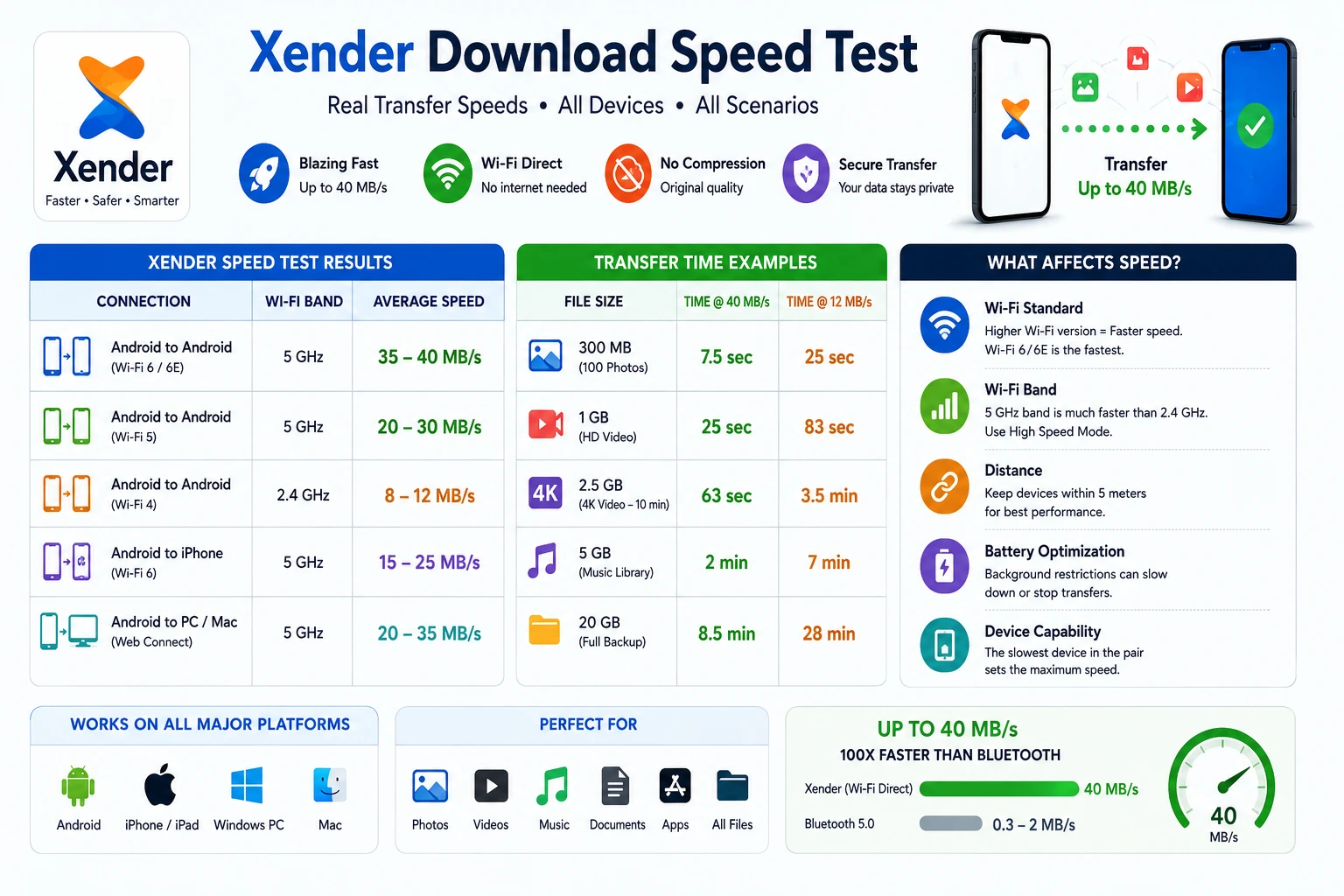
Xender download speed test

Xender Download Speed Test — How Fast Is Xender in Real-World Conditions?

Xender download speed test results vary significantly depending on which devices are involved, which Wi-Fi band they are on, how far apart they are, and whether battery optimization is interfering in the background. The app advertises speeds of up to 40 MB/s — and that number is achievable, but only under specific conditions that most users never fully optimize for.

This article breaks down real transfer speeds across every device combination, explains exactly what determines Xender’s speed in practice, and gives you the specific steps to reach maximum throughput on your hardware.

How Xender Transfers Files — The Speed Foundation

Before testing numbers, the technology matters. Xender, developed by Xender (HK) Limited, uses Wi-Fi Direct (IEEE 802.11). This peer-to-peer wireless standard creates a direct connection between two devices without routing data through a router or internet connection.

The speed ceiling is set by whichever Wi-Fi standard both devices support:

Wi-Fi StandardFrequencyTheoretical MaxReal-World Xender Speed
Wi-Fi 6E (802.11ax)2.4 / 5 / 6 GHz9.6 Gbps35–40 MB/s
Wi-Fi 6 (802.11ax)2.4 / 5 GHz9.6 Gbps32–40 MB/s
Wi-Fi 5 (802.11ac)2.4 / 5 GHz3.5 Gbps20–35 MB/s
Wi-Fi 4 (802.11n)2.4 GHz only600 Mbps8–15 MB/s
Wi-Fi 4 (802.11n)5 GHz600 Mbps12–20 MB/s

The slowest device in any transfer pair sets the ceiling. A Galaxy S25 Ultra (Wi-Fi 6E) transferring to a Galaxy A15 (Wi-Fi 4) will cap at the A15’s maximum — not the S25’s.

Xender Speed Test Results — Android to Android

Android-to-Android is the fastest Xender transfer path because both devices support full Wi-Fi Direct without any OS-level restrictions.

Flagship Android (Wi-Fi 6 / 6E) to Flagship Android

Devices: Galaxy S24, Galaxy S25, Pixel 9, OnePlus 13

5 GHz with High Speed Mode:
35–40 MB/s sustained
2.4 GHz without High Speed Mode:
10–15 MB/s
FileSizeTime at 40 MB/sTime at 12 MB/s
100 photos~300 MB~7.5 seconds~25 seconds
HD video (1080p)~1 GB~25 seconds~83 seconds
4K video (10 min)~2.5 GB~63 seconds~3.5 minutes
Music library~5 GB~2 minutes~7 minutes
Full backup~20 GB~8.5 minutes~28 minutes

Mid-Range Android (Wi-Fi 5) to Any Android

Devices: Galaxy A55, Redmi Note 13, Realme 12

5 GHz: 20–30 MB/s2.4 GHz: 8–12 MB/s

Budget Android (Wi-Fi 4 only) to Any Android

Devices: Galaxy A15, Redmi 12, JioPhone Next

2.4 GHz only: 8–12 MB/s (Wi-Fi 4 does not support 5 GHz)

Why does my Xender transfer show 8 MB/s instead of 40 MB/s? The most common cause is one or both devices being on 2.4 GHz Wi-Fi 4 rather than 5 GHz Wi-Fi 5 or 6. Check in Xender Settings → High Speed Mode — if it is greyed out or unavailable, at least one device does not support 5 GHz Wi-Fi Direct. Both devices need Wi-Fi 5 (802.11ac) or higher for High Speed Mode to activate.

Xender Speed Test Results — Android to iPhone

iOS imposes additional processing overhead on Wi-Fi Direct connections via third-party apps, reducing achievable speeds compared to Android-to-Android on the same hardware.

iPhone Model Wi-Fi Standard Xender Speed (from Android)
iPhone 15 / 15 Pro Wi-Fi 6E 20–28 MB/s
iPhone 14 series Wi-Fi 6 18–25 MB/s
iPhone 13 series Wi-Fi 6 15–22 MB/s
iPhone 12 series Wi-Fi 6 12–18 MB/s
iPhone 11 and earlier Wi-Fi 5 10–15 MB/s

Why is Android to iPhone slower than Android to Android? Apple restricts how third-party apps interact with the Wi-Fi Direct radio at the OS level — unlike Android, which gives apps more direct access. iOS adds processing overhead to Wi-Fi Direct connections from non-Apple apps, which reduces the sustained throughput. AirDrop bypasses this because it uses Apple’s own system-level protocols.

Xender Speed Test Results — Phone to PC via Web Connect

Xender Web Connect — used for phone-to-PC transfers at web.xender.com — routes files through the local Wi-Fi network rather than a direct Wi-Fi Direct connection. This means speed depends on the router’s local network throughput, not just the phone’s Wi-Fi radio.

For a complete guide to using Xender with a computer, see Xender for PC .

Network Type Xender Web Connect Speed
Wi-Fi 6 router (5 GHz) 25–40 MB/s
Wi-Fi 5 router (5 GHz) 15–30 MB/s
Wi-Fi 4 router (5 GHz) 10–20 MB/s
Wi-Fi 4 router (2.4 GHz) 5–12 MB/s

Web Connect speeds are generally lower than direct phone-to-phone transfers because the router acts as an intermediary — the data passes through the router’s switching fabric rather than a direct radio link.

Is Xender Web Connect faster than a USB cable? On a Wi-Fi 5 or 6 network, Xender Web Connect reaches 15–30 MB/s — comparable to USB 2.0 (which delivers 25–35 MB/s) and slower than USB 3.0 (80–120 MB/s). For everyday file transfers under 5 GB, the difference from USB 2.0 is minimal. USB 3.0 remains faster for very large transfers.

What Kills Xender Speed — 7 Common Causes

Most users who see unexpectedly slow Xender speeds have one of these seven issues. Each one is fixable.

1. One Device Is on 2.4 GHz

2.4 GHz Wi-Fi 4 caps Xender at 8–15 MB/s regardless of the other device’s Wi-Fi standard. Enable High Speed Mode and check that both devices connect on 5 GHz. Devices released before 2017 often do not support 5 GHz at all.

2. Battery Optimization Is Active

Android’s battery management — particularly on Samsung One UI and Huawei EMUI — pauses or throttles background processes including Xender’s transfer engine. This causes speed to drop mid-transfer rather than being consistently slow.

Fix: Settings → Apps → Xender → Battery → Unrestricted. On Samsung: Settings → Device Care → Battery → Background Usage Limits → add Xender to the never-sleep list.

3. Devices Are Too Far Apart

Wi-Fi Direct signal strength drops with distance. At 5 meters or less, Xender sustains maximum throughput. At 10–15 meters, speed drops noticeably. At 25+ meters, connection may become unstable.

For large transfers, keep both devices within 5 meters.

4. Other Wi-Fi Activity Is Competing

If both devices are actively streaming video, downloading updates, or running other Wi-Fi-intensive apps, those compete with Xender’s Wi-Fi Direct connection for radio bandwidth. Close other data-heavy apps before starting large transfers.

5. Screen Locked During Transfer

A locked screen triggers battery management on many Android devices, which reduces Xender’s CPU and Wi-Fi allocation. This does not always stop the transfer but frequently reduces throughput by 30–50%.

Fix: Set Screen Timeout to Never on both devices before starting large transfers.

6. Phone Case Blocking Signal

Thick metal phone cases — particularly full-metal bumper cases — reduce Wi-Fi Direct signal strength by physically blocking the Wi-Fi antenna. This is a real and often overlooked cause of slower-than-expected Xender speeds.

Remove the case for large transfers if speeds are unexpectedly low.

7. Older Xender Version

Xender releases connection and throughput improvements in major versions. Running an older build on a device capable of a newer version can mean missing Wi-Fi Direct optimizations introduced in later builds. Keep Xender updated to the latest version available for your device for best performance.

Quick performance checklist: Use 5 GHz when both devices support it, disable battery restrictions, keep the phones close together, close heavy Wi-Fi apps, keep the screens awake, and make sure Xender is updated. Xender’s official support confirms that its transfers rely on Wi-Fi/hotspot connectivity and recommends stable Wi-Fi for optimal transfer performance.

How to Run Your Own Xender Speed Test

You do not need a third-party app to test Xender’s actual transfer speed. The app shows real-time speed during every transfer.

Steps

  1. Open Xender on both devices
  2. Start a transfer of a large file — at least 1 GB for an accurate reading
  3. Watch the transfer progress screen — Xender displays current speed in MB/s in real time
  4. Note the sustained speed over the middle of the transfer (not the first 5 seconds, which includes connection overhead)

What to look for

35–40 MB/s: Both devices on 5 GHz Wi-Fi 6 or 6E, High Speed Mode enabled, within 5 meters, battery optimization disabled — optimal conditions
20–30 MB/s: Wi-Fi 5 devices, 5 GHz, good conditions
8–15 MB/s: 2.4 GHz network or one device on Wi-Fi 4 — normal for mid-range and budget hardware
Under 5 MB/s: Battery optimization active, interference, or one device on a very congested 2.4 GHz network

How do I know if Xender High Speed Mode is actually active?

When High Speed Mode is active, the connection indicator in the Xender transfer screen shows a blue lightning bolt or “High Speed” label depending on your version. If it shows the standard connection icon, the 5 GHz connection was not established — check that both devices have Wi-Fi 5 or better.

SPEED COMPARISON

Xender Speed vs Other Transfer Methods — Full Comparison

MethodReal-World SpeedRequires InternetFile Size Limit
Xender (5 GHz Wi-Fi 6)35–40 MB/sNoNone
Xender (2.4 GHz Wi-Fi 4)8–15 MB/sNoNone
AirDrop (Apple to Apple)25–65 MB/sNoNone
Quick Share / Nearby Share15–30 MB/sNoNone
Bluetooth 5.02–3 MbpsNo~100 MB practical
USB 2.0 Cable25–35 MB/sNoNone
USB 3.0 Cable80–120 MB/sNoNone
Google Drive (50 Mbps internet)5–6 MB/sYes15 GB free
WeTransfer (50 Mbps internet)5–6 MB/sYes3 GB free
⚡

Xender on 5 GHz Wi-Fi 6 is the fastest free wireless cross-platform file transfer method available — faster than Quick Share, faster than Bluetooth by over 100x, and comparable to USB 2.0 cables without requiring any physical connection.

SPEED OPTIMIZATION

Optimizing Xender Speed — Step-by-Step Checklist

Apply these in order before any large transfer:

01
Enable High Speed Mode

Enable High Speed Mode in Xender Settings on both devices

02
Confirm 5 GHz Wi-Fi

Confirm both devices show a 5 GHz Wi-Fi connection in phone settings (Settings → Wi-Fi → your network → frequency)

03
Keep the Screen Awake

Set Screen Timeout to Never on both devices (Settings → Display → Auto-Lock or Screen Timeout)

04
Disable Battery Optimization

Disable battery optimization for Xender on Android (Settings → Apps → Xender → Battery → Unrestricted)

05
Keep Devices Close

Place both devices within 5 meters of each other

06
Close Other Wi-Fi Activity

Close other Wi-Fi-intensive apps (streaming, downloads) on both devices

07
Keep Xender Updated

Ensure Xender is updated to v18.5.0 — the current version

✓
Maximum Speed Target

Following all seven steps on compatible hardware should bring Xender to 35–40 MB/s sustained throughput.

FAQ

Frequently Asked Questions

Everything you need to know about Xender transfer speed and performance.

What is Xender’s maximum transfer speed? +

Xender reaches up to 40 MB/s using Wi-Fi Direct on 5 GHz with High Speed Mode enabled. This requires both devices to support Wi-Fi 5 (802.11ac) or higher. On 2.4 GHz or Wi-Fi 4 devices, real-world speeds are 8–15 MB/s.

Why is my Xender transfer speed so slow? +

The most common causes are: one or both devices being on 2.4 GHz Wi-Fi 4 (which cannot reach 40 MB/s), battery optimization throttling Xender in the background, devices being far apart, or High Speed Mode not being enabled. Apply the seven-step checklist above to reach maximum speed.

How do I check Xender’s current transfer speed? +

Xender displays real-time transfer speed in MB/s on the progress screen during every active transfer. Start a transfer of at least 1 GB and watch the speed indicator — the sustained mid-transfer speed is your actual throughput.

Is Xender faster than Bluetooth for file transfer? +

Yes, significantly. Bluetooth 5.0 achieves 2–3 Mbps in real file transfers. Xender on 5 GHz Wi-Fi Direct reaches 35–40 MB/s — over 100 times faster. A 1 GB file takes 45 minutes over Bluetooth and about 25 seconds over Xender on 5 GHz.

Does Xender speed change with file size? +

For most file types and sizes, Xender maintains consistent throughput throughout the transfer. Very small files (under 10 MB) show slightly lower effective speed because connection setup overhead is proportionally larger. For files above 100 MB, reported speed is a reliable indicator of actual throughput.

Is Xender Web Connect speed the same as direct phone-to-phone speed? +

No. Web Connect routes files through the local Wi-Fi network via a router, adding an extra hop. Direct phone-to-phone transfers use Wi-Fi Direct, which is faster. On a Wi-Fi 6 network, Web Connect typically delivers 25–40 MB/s — close to direct transfer. On a 2.4 GHz Wi-Fi 4 router, Web Connect delivers 5–12 MB/s.

What Android devices get the fastest Xender speeds? +

Devices with Wi-Fi 6E support — including Galaxy S23, S24, S25 series, Pixel 9 series, and OnePlus 13 — achieve the highest Xender throughput of 35–40 MB/s with High Speed Mode on 5 GHz. Wi-Fi 5 devices (Galaxy A55, Redmi Note 13) reach 20–30 MB/s.

Does turning off battery optimization improve Xender speed? +

Yes, on Android — particularly on Samsung One UI and Huawei EMUI. Battery optimization does not always slow initial connection speed but frequently causes mid-transfer throttling or pauses that reduce effective throughput. Setting Xender to Unrestricted in battery settings prevents this.

FINAL VERDICT

Final Conclusion

Xender’s real-world download speed test results range from 8 MB/s on budget 2.4 GHz hardware to 40 MB/s on flagship Wi-Fi 6E devices — a fivefold difference that comes entirely from Wi-Fi hardware capability and settings, not the app itself.

The variables that matter most: Wi-Fi standard (5 GHz vs 2.4 GHz), High Speed Mode enabled on both devices, battery optimization disabled, and physical proximity between devices. Address all four and Xender consistently reaches its published ceiling on compatible hardware.

⚡
REALISTIC MID-RANGE PERFORMANCE 15–25 MB/s

Expected speed for the majority of everyday Xender users.

For users on mid-range devices — the majority of Xender’s 500 million user base — 15–25 MB/s is the realistic expectation. That translates to a 1 GB file in 40–65 seconds, which is still 15–25 times faster than Bluetooth and practical for everyday photo, video, and document transfers at zero data cost.

01 5 GHz Wi-Fi Best wireless throughput
02 High Speed Mode Enable on both devices
03 Battery Unrestricted Prevents background throttling
04 Close Devices Keep them physically nearby