
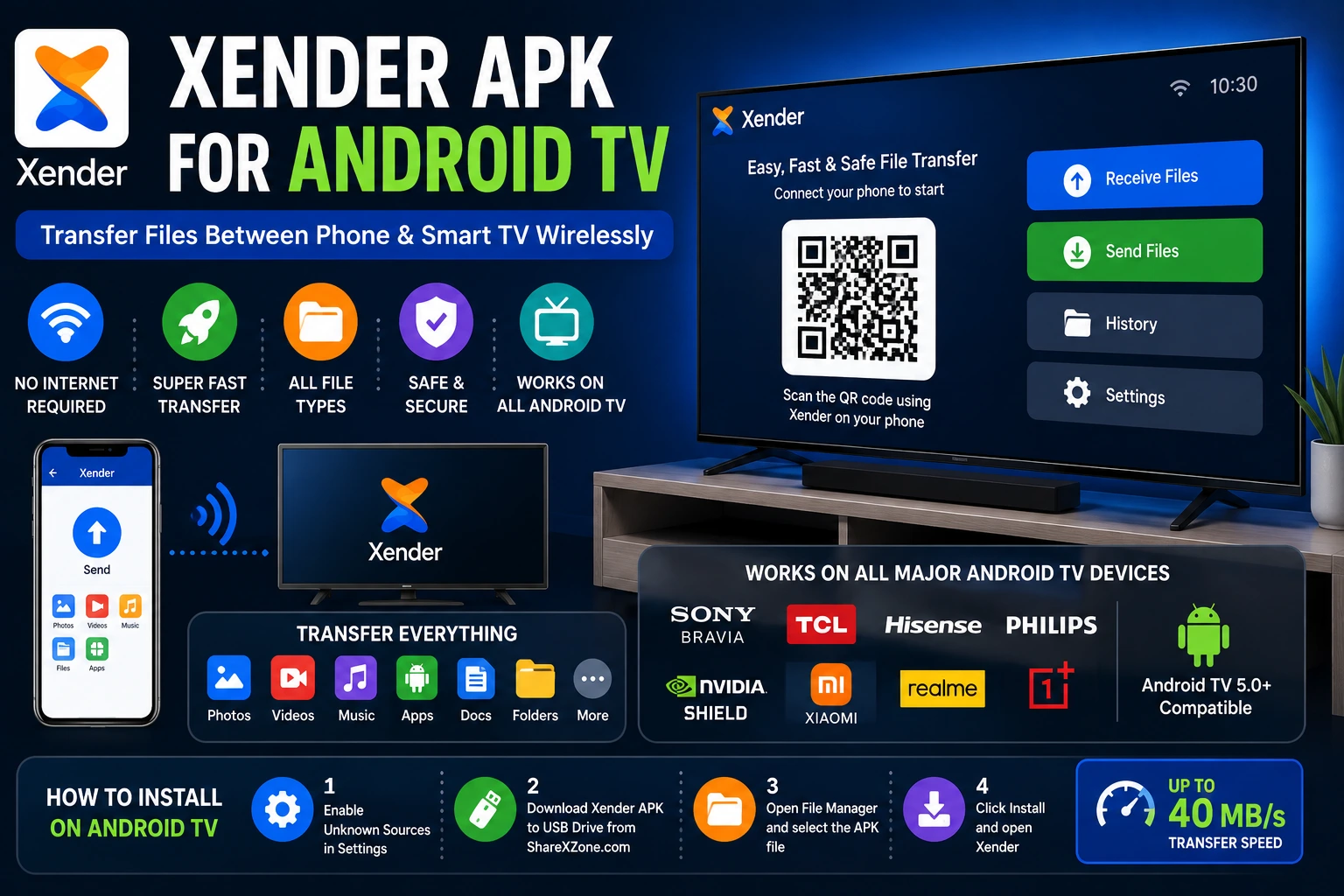
Xender APK for Android TV — How to Install and Transfer Files to Your Smart TV
Most people never think about installing a file transfer app on their TV. Then they try to move a 4K video from their phone to a smart TV for local playback, discover that USB sticks introduce friction, and realize that wirelessly pushing files directly to the TV’s storage would be considerably simpler.
Xender APK for Android TV makes this possible. Because Android TV runs on a Linux-kernel Android base — the same foundation as a smartphone — it can install and run Android APK files. Xender, developed by Xender (HK) Limited, installs on any Android TV and creates a direct Wi-Fi Direct (IEEE 802.11) connection between your phone and the TV, allowing file transfers in both directions without cables, internet, or cloud services.
This guide covers which Android TV devices support Xender, how to install it, how to transfer files from your phone to your TV, the limitations you may encounter, and every fix for the most common problems.
Which Android TV Devices Support Xender?
Android TV — developed by Google and first released in June 2014 as a successor to Google TV — is the operating system running on smart TVs and streaming devices from multiple manufacturers. The latest version is Android TV 16, released in July 2025.
Xender runs on any Android TV device with Android 5.0 or above and at least 1 GB of RAM. This covers the vast majority of Android TV hardware currently in use.
Confirmed compatible Android TV devices:
| Manufacturer | Models | Android TV Version |
|---|---|---|
| Sony | Bravia XR, Bravia X series (2019–2026) | Android TV 9–16 |
| TCL | 6-Series, 5-Series, 4-Series (2020–2026) | Android TV 11–16 |
| Hisense | U8 series, U7 series (2021–2026) | Android TV 11–16 |
| Philips | OLED 807, 707, PUS series (2020–2026) | Android TV 10–16 |
| Nvidia | Shield TV, Shield TV Pro | Android TV 11+ |
| Xiaomi | Mi TV, Mi Box series | Android TV 9–16 |
| Realme | Smart TV series | Android TV 10–16 |
| OnePlus | TV Q-series, Y-series | Android TV 10–16 |
Many current TVs run Google TV — the updated interface layer built on top of Android TV. Technically, Google TV is Android TV with a redesigned UI. Xender installs and runs on Google TV devices the same way it does on standard Android TV. The installation process differs slightly (covered below).
Google TV is an updated interface for Android TV — the same underlying OS, different launcher. Xender runs identically on both. The installation method differs: Google TV has a more restrictive Play Store that may not show Xender, requiring APK sideloading via a file manager app. Android TV typically allows direct Play Store installation. Full installation steps for both are covered below.
How to Install Xender on Android TV
There are three installation methods. Which one applies depends on your specific TV model and Android TV version.
Method 1 — Google Play Store (Standard Android TV)
On Android TV devices with full Google Play Store access:
- Press the Home button on your TV remote
- Navigate to Apps → Google Play Store
- Search for Xender — File Transfer & Share
- Select Xender from the results
- Click Install
Method 2 — APK Sideload via USB Drive
This method works on any Android TV regardless of Play Store restrictions.
What you need:
- A USB drive (FAT32 formatted)
- The Xender APK file downloaded from ShareXZone.com
Step 1 — Enable Unknown Sources on the TV:
- Go to Settings → Device Preferences → Security & Restrictions
- Enable Unknown Sources
- On some Sony Bravia models: Settings → Apps → Security & Restrictions → Unknown Sources → On
Step 2 — Copy the APK to USB:
- Download the latest Xender APK v18.5.0 from ShareXZone.com on your phone or computer
- Copy the APK file to the root of the USB drive
Step 3 — Install from USB:
- Plug the USB drive into the TV’s USB port
- Open a file manager app on the TV (most Android TVs include one; if not, install FX File Explorer or File Commander from the Play Store first)
- Navigate to the USB drive → find the Xender APK file
- Click the APK → select Install
- Wait 15–30 seconds for installation to complete
Step 4 — Open Xender on the TV:
- Press Home → find Xender in your app list
- If it does not appear immediately, go to Settings → Apps → All Apps to find it
Method 3 — Sideload via Downloader App
Downloader by AFTVnews is available on the Android TV Play Store and allows APK installation directly from a URL without a USB drive.
- Install Downloader from the Android TV Play Store
- Open Downloader
- Enter the ShareXZone.com URL for the Xender APK
- Download completes → Downloader prompts to install automatically
- Click Install → Xender installs on the TV
How to Transfer Files from Phone to Android TV Using Xender
Once Xender is installed on both your phone and the Android TV, the transfer process is straightforward — with one important difference from phone-to-phone transfers.
Understanding TV Navigation in Xender
Xender on Android TV is designed for touch interaction and was not built specifically for remote control navigation. You navigate using the D-pad (directional pad) on your remote:
- OK/Select button = tap
- D-pad directions = swipe/scroll
- Back button = go back
- Home button = exit to TV launcher
Navigation is manageable but slower than on a phone. For most TV use cases — receiving files from a phone — the TV’s Xender interaction is minimal: you open it, tap Receive, and the transfer happens automatically.
Phone to Android TV — Step by Step
On your phone (sender):
- Open Xender
- Tap Send
- Select the files — photos, videos, music, documents, or APK files
- Tap Send again
On the Android TV (receiver):
- Open Xender using your remote
- Navigate to Receive and press OK
- Your TV name appears on the phone’s Xender screen
- On the phone, tap the TV’s device name to connect
- Transfer begins — progress shows on both the phone and TV screen
Where files are saved on Android TV:
Files received via Xender save to the TV’s internal storage — typically the Xender folder in the TV’s file system. Access them through the TV’s built-in file manager or a third-party file manager app. Video files appear in the TV’s gallery or media player app after Android’s media scanner indexes them.
Android TV to Phone — Reverse Transfer
The reverse direction — sending files from TV storage to your phone — is less common but works the same way with roles swapped.
On the TV:
- Open Xender → navigate to Send → press OK
- Browse the TV’s file system and select files
On the phone:
- Open Xender → tap Receive
- Your phone name appears on the TV screen
- Select it from the TV → transfer begins
Practical Use Cases for Xender on Android TV
Watching Phone Videos on a Big Screen
The most common reason to transfer files to an Android TV is watching videos stored on a phone on the larger display. A 4K video shot on a Samsung Galaxy S25 or iPhone 15 Pro — often 2–5 GB per clip — transfers in 1–3 minutes over Xender’s Wi-Fi Direct connection, after which it plays locally on the TV in full original quality with no streaming buffering.
This is particularly useful for travel videos, family recordings, and content not available on any streaming platform.
Moving Downloaded Content to TV Storage
Some users download videos, music, or podcasts on their phone during travel and want to move them to the TV for home viewing. Xender handles this transfer without requiring the TV to connect to the internet or a cloud service.
Sharing APK Files to TV
Android TV supports installing apps via APK — meaning you can use Xender to send an APK from your phone to your TV and install it from there. This is useful for installing apps that are not available in the Android TV Play Store.
How: Send the APK file via Xender to the TV’s storage. On the TV, open a file manager, navigate to the Xender folder, and tap the APK to install (with Unknown Sources enabled).
Transferring Music to TV for Audio Playback
Android TV devices connected to home theater systems or soundbars become capable music players when music files are transferred locally. Moving a lossless audio library (FLAC files) from a phone to TV storage via Xender preserves original quality — no streaming compression involved.
Xender vs Other Phone-to-TV Transfer Methods
| Method | Speed | Internet | Files Preserved | Setup Required |
|---|---|---|---|---|
| Xender (Wi-Fi Direct) | Up to 40 MB/s | No | Full original quality | Xender on TV + phone |
| USB Drive | 10–30 MB/s | No | Full original quality | USB drive needed |
| Google Cast (Chromecast) | Streaming only | Yes (local network) | Streamed (not saved) | Same Wi-Fi network |
| Plex / Jellyfin | Streaming only | Yes (local network) | Streamed (not saved) | Server software needed |
| Google Drive | 5–6 MB/s | Yes | Full quality | Google account |
| Bluetooth | 2–3 Mbps | No | Full quality | Pairing required |
Xender is the fastest wireless option that actually saves files to TV storage rather than streaming them. USB drives are the only method with comparable speed, but require physically moving a drive between devices.
Does Xender stream video to Android TV or actually transfer the file? Xender transfers files — it copies them to the TV’s internal storage. This is different from casting (Chromecast) or streaming (Plex), which play video without saving it. After a Xender transfer, the file exists permanently on the TV’s storage and plays from there without any network connection needed.
Limitations of Xender on Android TV
Understanding these limitations prevents frustration:
No touch interface.
Xender was designed for touchscreen devices. Remote control navigation works but is slower and less intuitive. The core Send and Receive functions are accessible, but browsing files on the TV side requires patience with D-pad navigation.
Storage limits on TV.
Most Android TVs have 8–32 GB of internal storage with limited user-accessible space. A Sony Bravia X90L typically has 16 GB total with 8–10 GB free after the OS. Large video libraries will fill this quickly. External storage via USB is an option on TVs that support it.
Phone Replication not applicable.
Phone Replication is designed for phone-to-phone Android migration. It does not apply to TV-to-phone or phone-to-TV scenarios in a meaningful way.
Wi-Fi Direct on Android TV varies by hardware.
Some budget Android TV sticks and boxes use older Wi-Fi chipsets that limit Xender speeds to 5–10 MB/s. Premium devices like Nvidia Shield TV with Wi-Fi 5 or 6 achieve 20–35 MB/s.
Google TV Play Store restrictions.
On Google TV (the newer interface), the Play Store filters apps by TV compatibility. Xender may not appear in search results, requiring APK sideloading. This is an interface policy difference, not a compatibility issue.
Common Xender Android TV Problems and Fixes
Xender Not Found in Android TV Play Store
The Android TV Play Store filters phone-only apps from search results on some TV models. Xender is categorized as a phone app and may not appear.
Fix: Use Method 2 (USB drive) or Method 3 (Downloader app) from the installation section above. APK sideloading bypasses the Play Store filter entirely.
TV Does Not Appear in Xender on Phone
The phone and TV must be on the same Wi-Fi network for Xender’s Wi-Fi Direct discovery to work.
Fix: Check the TV’s network connection — Settings → Network → Wi-Fi → current network name. Check the phone’s Wi-Fi connection. Both must show the same network name. If the TV is connected via Ethernet, try switching it to Wi-Fi — some Android TV Ethernet configurations use a different subnet from Wi-Fi devices.
Transfer Starts but Stops at Low Percentage
Battery optimization on the TV side is rare (TVs rarely implement Android battery optimization aggressively), but Xender’s process can be interrupted if the TV’s screen saver activates during transfer.
Fix: Go to TV Settings → Device Preferences → Screen Saver → set it to Never or increase the timeout. Also check if the TV has any power-saving mode that limits background app activity.
Received Files Not Playing on TV
Files received via Xender are saved to the Xender folder in TV storage. The TV’s built-in gallery or video player may not automatically index this folder.
Fix: Open a third-party file manager (FX File Explorer or File Commander) → navigate to Internal Storage → Xender → open the video directly from the file manager. This bypasses the gallery indexing delay.
APK Install Fails After Transfer
Fix: Confirm Unknown Sources is enabled on the TV: Settings → Device Preferences → Security & Restrictions → Unknown Sources → On. Then retry the APK install from the file manager.
Nvidia Shield TV — Best Android TV Performance
Nvidia Shield TV and Shield TV Pro represent the highest-performance Android TV hardware available — and they deliver the best Xender experience on a smart TV.
Shield TV runs Android TV 11 with full Play Store access, including Xender. Its Wi-Fi 5 (802.11ac) adapter supports Xender’s High Speed Mode, delivering transfer speeds of 20–35 MB/s — the fastest achievable on any Android TV device.
For users who regularly move large media files to their TV, the combination of Xender and Shield TV Pro’s 500 GB external storage support via USB creates a practical media management workflow: transfer files from phone to Shield TV at 30 MB/s, play locally at full 4K HDR quality.
Frequently Asked Questions
Q: Can you install Xender on Android TV?
Yes. Xender installs on any Android TV device running Android 5.0 or above with at least 1 GBof RAM. Installation is possible through the Google Play Store on standard Android TV devices, or via APK sideloading using a USB drive or the Downloader app on Google TV and restricted Play Store environments.
Q: How do I transfer files from my phone to Android TV using Xender?
Install Xender on both your phone and the Android TV. On your phone, tap Send and select files. On the TV, open Xender and tap Receive. Your TV appears on the phone’s device list — tap it to connect. Files transfer directly to the TV’s internal storage via Wi-Fi Direct at speeds up to 40 MB/s.
Q: Does Xender work on Google TV?
Yes. Google TV is built on Android TV and runs Android APKs. Xender functions identically on Google TV devices. The only difference is installation — Google TV’s Play Store may not show Xender in search results, requiring APK sideloading via USB drive or the Downloader app.
Q: Which Android TV brands support Xender?
Xender runs on Android TV devices from Sony, TCL, Hisense, Philips, Nvidia, Xiaomi, Realme, OnePlus, and any other manufacturer using Android TV 5.0 or above. Confirmed compatible brands include Sony Bravia XR series, TCL 6-Series, Hisense U8 series, Philips OLED 807, and Nvidia Shield TV.
Q: Does Xender transfer or stream files to Android TV?
Xender transfers — it copies files permanently to the TV’s internal storage. This is different from Google Cast or Plex, which stream content without saving it. After a Xender transfer, the file plays from local TV storage without any network connection needed.
Q: Why is my Xender transfer speed slow on Android TV?
Budget Android TV sticks and boxes often use older Wi-Fi chipsets (Wi-Fi 4, 2.4 GHz only) that limit Xender speeds to 5–10 MB/s. Premium devices like Nvidia Shield TV with Wi-Fi 5 achieve 20–35 MB/s. If your TV supports 5 GHz Wi-Fi, enable High Speed Mode in Xender Settings on the phone side for better throughput.
Q: Can I use Xender to send APK files to Android TV?
Yes. Transfer the APK from your phone to the TV’s Xender folder using Xender’s standard Send function. Then open a file manager on the TV, navigate to the Xender folder, and tap the APK to install it — with Unknown Sources enabled in TV settings.
Q: What is the maximum storage for files transferred to Android TV?
Storage depends on the specific TV model. Most Android TVs have 8–32 GB internal storage with 4–16 GB user-accessible. For larger media libraries, use a TV that supports external USB storage and connect a USB drive to expand capacity beyond internal limits.
Final Conclusion
Xender APK for Android TV solves a specific but genuinely useful problem: moving media files from a phone to a smart TV wirelessly, quickly, and without requiring cloud services, streaming infrastructure, or USB drives. A 4K video that would take several minutes to copy via USB stick — or require internet upload and download via cloud — transfers to TV storage in under 2 minutes over Xender’s Wi-Fi Direct connection at speeds up to 35 MB/s on capable hardware.
The installation process has one friction point: Google TV’s Play Store may not show Xender, requiring APK sideloading. Once installed, the functionality is stable, and the transfer workflow is straightforward even with remote control navigation.
For users who regularly watch phone-recorded videos on a big screen, play locally stored music through a TV audio system, or want to send APK files to a TV for sideloading — Xender on Android TV removes the cable and cloud dependency from all of these workflows at zero cost.