
How to Change Xender Download Location to SD Card (2026 Guide)
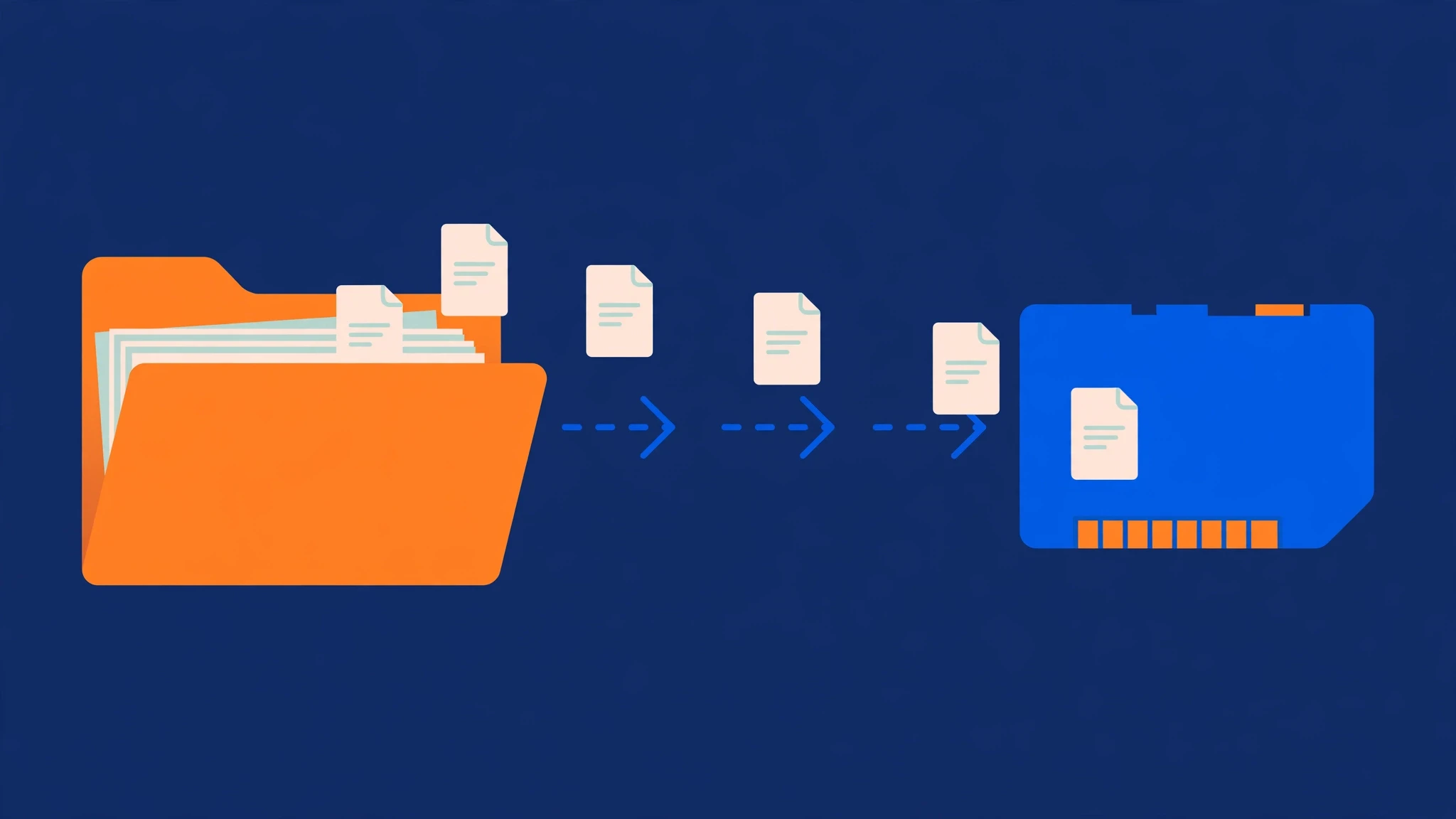
Videos eat phone storage fast. A few movie files received over Xender and your “storage almost full” warning starts showing up. If your phone has a microSD card slot, the fix is easy: tell Xender to save received files to the SD card instead of internal storage.
Here’s exactly how to change Xender’s download location to the SD card, what changes afterward, and what to do when the SD card option doesn’t appear.
The short answer
- Open Xender on your Android phone.
- Tap your profile icon / menu (top corner) → Settings.
- Tap Download location (it may be under “General” or “Storage”).
- Select your SD card from the list.
- Done — all new transfers now save to the SD card.
Before you start: 3 things to check
1. Your SD card must be mounted and working
If the phone doesn’t see the card, Xender won’t either. Open your phone’s Files app and confirm the SD card shows up as a storage location. If it doesn’t:
- Power off the phone, remove and reinsert the card, and power back on.
- Go to Settings → Storage and check whether the card is listed (it may need to be “mounted” — tap it and choose Mount if that option appears).
- Try the card in another phone or a card reader to rule out a dead card.
2. Xender needs storage permission
On Android 11 and newer, apps need explicit permission to write to shared storage. If Xender’s permission was denied or revoked, the SD card option may not work (or transfers may fail silently):
- Go to Settings → Apps → Xender → Permissions.
- Make sure Files and media (or “Storage”) is set to Allow.
3. Know how your card is set up: portable vs. internal
Android offers two ways to use an SD card, and it matters here:
- Portable storage (the default): the card works like a removable drive. Xender can usually save to it when the option is available.
- Internal / adopted storage: the card is formatted as an extension of internal memory. In this mode there is no separate “SD card” for Xender to pick — everything is already one pool, so the setting is irrelevant.
Most phones use portable storage by default. If you (or a previous owner) formatted the card as internal storage, you won’t see a separate SD card option in Xender — that’s normal, not a bug.
Step-by-step: change Xender’s download location to SD card
- Open Xender. Make sure you’re on the latest version — older builds sometimes hide the setting in a different menu.
- Open Settings. Tap your profile/avatar icon (usually top-left or top-right) and choose Settings from the menu.
- Find the download location setting. Look for Download location. Depending on your Xender version it may sit directly in Settings, or under General, Storage, or More settings.
- Choose the SD card. You’ll see the available storage locations — typically Internal storage and your SD card (shown by its name or as “External storage”). Tap the SD card.
- Confirm if asked. Some versions show a confirmation dialog or ask you to pick/confirm a folder on the card. Accept it.
- Verify it worked. Go back to Settings → Download location and confirm the SD card is now the selected path.
- Send yourself a test file. Transfer any small file from another device and check that it lands on the SD card (open your Files app → SD card → Xender folder).
What changes after you switch (and what doesn’t)
What changes:
- All new received files go to the SD card from now on.
- Xender creates its folder structure (Xender → Images, Videos, Music, Documents, Apps) on the card.
What doesn’t change:
- Files you already received stay in internal storage. Xender does not move them automatically. (See the next section for how to move them yourself.)
- Xender’s own app data (settings, chat history, cache) stays on internal storage — this setting only controls where received files land.
How to move your old received files to the SD card
If you want everything in one place, move the existing files manually:
- Open your phone’s Files app (or any file manager).
- Go to Internal storage → Xender.
- Select the files or subfolders you want to move (long-press to multi-select).
- Tap Move (not Copy — Move frees the internal space).
- Navigate to your SD card, open (or create) the Xender folder, and paste.
Tip: Move in batches if you have gigabytes of files — very large single moves can stall on slower cards. And don’t move files while a Xender transfer is in progress.
The SD card option is missing — why, and how to fix it
This is the most common complaint. Work through these causes in order:
1. The card isn’t mounted properly
The phone sees the card in Settings but it isn’t actually mounted, or it was ejected. Reinsert it, reboot, and check Settings → Storage shows it as available.
2. The card is formatted as internal (adopted) storage
As explained above: if the card was adopted as internal storage, there’s no separate card for Xender to select. Check Settings → Storage — if the card shows as part of internal storage rather than a separate “portable” entry, this is your answer. (Reformatting it as portable storage would fix it, but erases everything on the card — back up first.)
3. Your phone manufacturer restricted it
Some manufacturers limit third-party apps’ write access to SD cards, varying by model and Android version. If the option simply isn’t listed and everything else checks out, this may be the cause. Workaround: keep Xender on internal storage and move files to the card manually afterward.
4. Xender’s storage permission is denied
Re-check Settings → Apps → Xender → Permissions → Files and media → Allow. On some phones the SD card location won’t even be offered until this is granted.
5. You’re on an old Xender version
Update Xender to the latest version. Very old builds had a more limited settings menu. (See our guide to Xender versions for version details.)
6. iPhone users: this doesn’t apply
iPhones have no SD card slot, and iOS doesn’t allow apps to write to external storage this way. If you’re on iPhone, received files stay inside the Xender app — see our guide on where Xender saves received files for the iOS details.
An honest note: SD cards are slower and less reliable
Switching to the SD card solves the space problem, but go in with realistic expectations:
- Transfers may feel slightly slower, especially saving large videos, because even good SD cards are slower than internal flash storage. With a cheap or old card the difference is noticeable.
- Card quality matters. A worn-out or counterfeit card can corrupt files. If you regularly receive important files, buy cards from reputable brands and replace very old ones.
- Don’t eject the card mid-transfer. Removing the card while Xender is writing to it can corrupt the file being received (and occasionally the card’s file system). Pause transfers before ejecting.
- Keep a backup of anything irreplaceable. SD cards fail more often than internal storage. If a received file matters, copy it to a computer or cloud storage too.
None of this means you shouldn’t use the SD card — for most people it’s the right call. Just don’t treat it as archival storage.
Should you switch? Quick decision guide
Switch to SD card if:
- Your internal storage is nearly full and you receive large files (movies, big app files, photo batches).
- You have a decent-quality card (Class 10 / U1 or better) with plenty of free space.
Stay on internal storage if:
- You only receive small files occasionally — the default is fine.
- Your SD card is old, slow, or nearly full itself.
- Your phone has generous internal storage (128 GB+) and you’re nowhere near filling it.
Troubleshooting quick reference
| Problem | Most likely cause | Fix |
|---|---|---|
| SD card option not listed | Card not mounted / adopted as internal / manufacturer restriction | Reinsert + reboot; check Storage settings; grant Xender storage permission |
| Files still go to internal storage | Setting didn’t save, or an app update reset it | Re-select the SD card in Settings → Download location and send a test file |
| Transfer fails after switching | Card full, card corrupted, or permission revoked | Free space on the card; re-check permissions; try the card in another device |
| Files on card won’t open | Card corruption or interrupted write | Re-receive the file; if it recurs, replace the card |
| Phone no longer sees the card at all | Dead card or dirty contacts | Clean the contacts, reinsert; test in another device |
FAQs
How do I change the Xender download location to SD card?
Open Xender → profile/menu → Settings → Download location → select your SD card. New received files will save there from that point on.
Why is there no SD card option in Xender settings?
Usually because the card isn’t mounted, it’s formatted as internal (adopted) storage, Xender lacks storage permission, or the phone manufacturer restricts SD access for third-party apps. Work through the fixes in the “option is missing” section above.
Will changing the location move my existing files?
No. Files you already received stay where they are. Move them manually with your file manager (Internal storage → Xender → Move → SD card → Xender).
Can I use the SD card on iPhone with Xender?
No — iPhones have no SD card slot, and iOS doesn’t let Xender write to external storage. Received files stay inside the Xender app on iPhone.
Does Xender work with the SD card set as internal storage?
If your card is adopted as internal storage, everything (including Xender files) already uses the combined pool — the download-location setting becomes irrelevant, and you won’t see a separate SD card option. That’s expected behavior.
Will files on the SD card transfer slower?
Slightly, yes — SD cards are slower than internal flash. With a good-quality card the difference is minor; with a cheap or aging card it can be noticeable on large files.
What happens if I remove the SD card while Xender is saving to it?
The file being received will likely be corrupted, and in rare cases the card’s file system can be damaged. Always pause transfers before ejecting the card.
Related guides: Where Do Xender Received Files Go? · How to Use Xender · Xender Not Working? Fixes That Help